In This Article
- Raw Docker — Powerful but Unmanaged
- The Five-Layer Isolation Model
- Docker Inside the Panel — What Changes
- The Resource Ceiling — Why a User Cannot Escape Their Plan
- Side-by-Side: Raw Docker vs. Panel-Managed Docker
- App Templates — One-Click Deployment with Built-In Limits
- Domain Linking — Containers as Websites
- Container File Manager — No CLI Required
1. Raw Docker — Powerful but Unmanaged
Docker by itself is a container engine. It runs images, maps ports, mounts volumes, and manages networks. What it does not do is manage users. Install Docker on a Linux server and every user with access to the Docker socket can pull any image, bind any port, mount any directory on the host filesystem, and consume every available CPU core and byte of memory. There is no concept of quotas, ownership, or multi-tenant isolation built into Docker itself.
This is not a flaw. Docker was designed as an infrastructure tool, not a hosting platform. The problem appears when you want to give multiple clients or team members access to Docker on the same server without giving them the ability to affect each other or the host system.
That gap is where the panel's isolation architecture operates. It wraps Docker inside a kernel-enforced resource boundary so that containers behave like first-class managed resources — with ownership, limits, permissions, and audit trails — instead of unsupervised processes.
2. The Five-Layer Isolation Model
Before Docker enters the picture, every user on the server already lives inside an isolation envelope. This is not a Docker feature. It is a server-wide architecture that applies to every process a user runs — PHP, SSH sessions, cron jobs, and yes, Docker containers.
Cgroups v2 — Resource Ceiling
Each user gets a dedicated cgroup slice at panelica-user-{username}.slice. The kernel enforces CPU time, memory, disk I/O bandwidth, and process count limits. No process running inside this slice — whether it is a PHP script, an SSH session, or a Docker container — can exceed these numbers. The limits come directly from the user's hosting plan.
Linux Namespaces — Process and Filesystem Isolation
PID and mount namespaces give each user a private view of the system. A user cannot see other users' processes, cannot access other users' files, and cannot discover what else is running on the server. Docker itself uses the same kernel namespaces internally, but the panel applies them at the user level before any container is created.
SSH Chroot — Shell Boundary
Users who access the server via SSH or SFTP are confined to a chroot jail. They see their home directory, a curated set of binaries (bash, ls, nano, vim, git, curl), and nothing else. They cannot traverse the host filesystem, modify system configurations, or access the Docker socket directly.
PHP-FPM — Per-User, Per-Version Pools
Each user runs their own PHP-FPM process pool, separate from every other user. The pool inherits the user's cgroup limits. A runaway PHP script consumes the user's CPU quota, not the server's.
Unix Permissions — File Ownership
Every user has a unique Linux UID and GID. Files are owned by the user. Processes run as the user. Cross-user file access is blocked at the kernel level. Docker containers created for a user store their data under /home/{username}/docker/, counting against the user's disk quota.
3. Docker Inside the Panel — What Changes
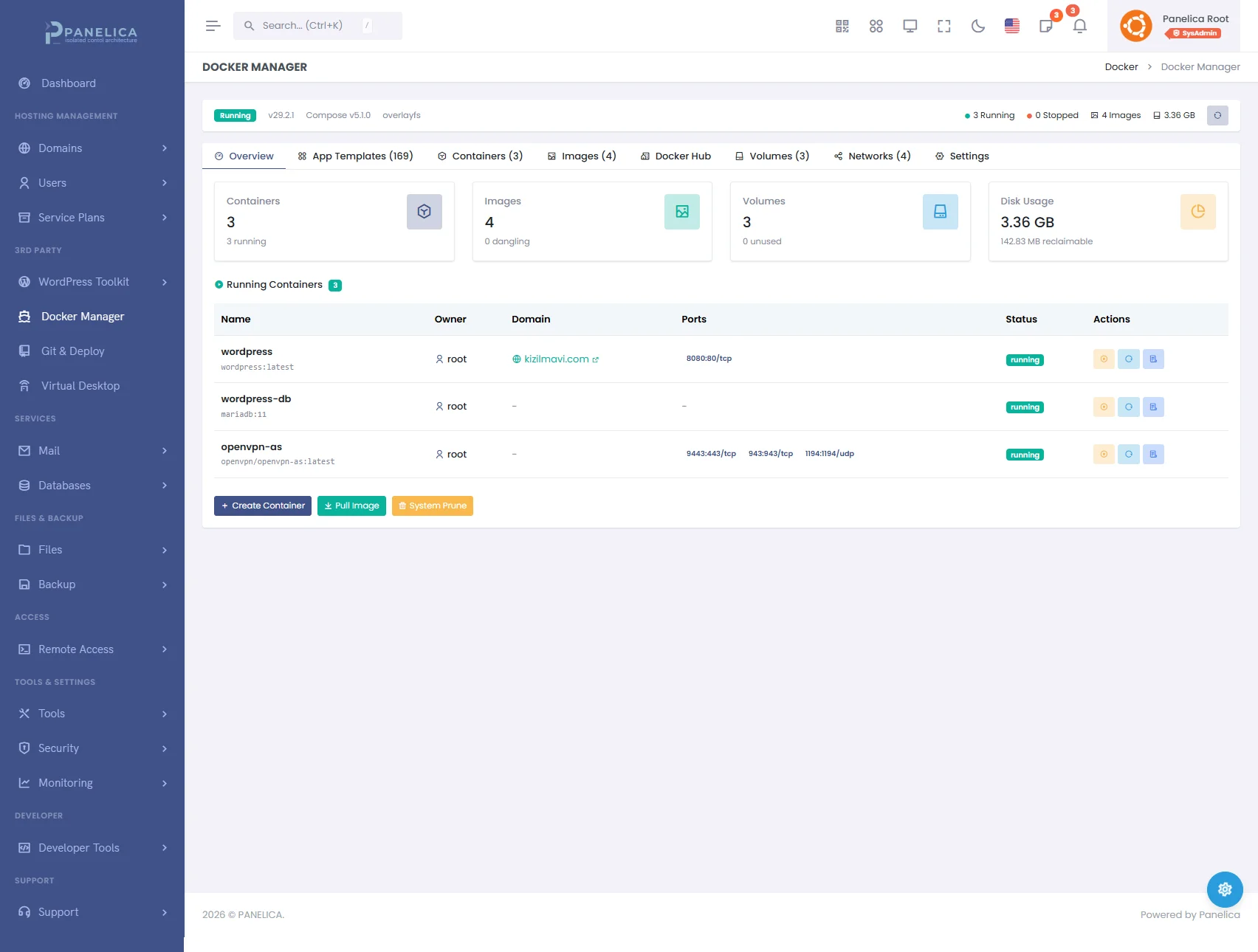
Panelica Docker Manager — Deploy and manage containers without leaving your panel
When Docker is managed through the panel instead of the command line, several things happen automatically that a raw Docker installation leaves to the administrator:
Ownership Labels
Every container created through the panel receives metadata labels: panelica.user_id, panelica.username, and panelica.role. These labels are invisible to the container itself but they determine who can see, control, and delete it. A USER-role account sees only their own containers. An ADMIN sees containers belonging to users they created. ROOT sees everything.
Plan-Based Container Quotas
Each hosting plan defines a max_containers value. When a user tries to create a container, the system counts their existing containers (via the ownership labels) and compares against the plan limit. If the user's plan allows 5 containers and they already have 5 running, the create request is rejected before Docker is even contacted. Setting the value to zero disables Docker entirely for that plan. Setting it to −1 removes the limit.
Automatic Resource Capping
A user might request a container with 4 CPU cores and 8 GB of memory. If their plan allows 2 cores and 2 GB, the system silently caps the request to the plan limits. There is no error message — the container is created with the maximum resources the plan permits. This prevents both accidental and deliberate over-allocation.
Cgroup Parent Assignment
The most important technical detail: every container created for a non-ROOT user is assigned a CgroupParent matching the user's slice. Docker creates the container's processes inside that cgroup subtree. The result is that the container's CPU and memory usage count against the user's total budget, not the server's global pool. If a user runs three containers and a PHP site simultaneously, all four share the same CPU and memory ceiling defined in the plan.
Volume Path Enforcement
Docker named volumes normally live in /var/lib/docker/volumes/, which is outside any user's home directory and invisible to disk quotas. The panel converts named volumes to bind mounts under /home/{username}/docker/{volume_name}. Disk usage is real, trackable, and counts against the user's storage allocation.
Security Hardening
Non-ROOT containers automatically receive no-new-privileges as a security option, preventing privilege escalation inside the container. Bind mount paths are validated to ensure users cannot mount system directories or other users' home directories. Privileged mode and dangerous Linux capabilities are stripped from template deployments for non-ROOT users.
4. The Resource Ceiling — Why a User Cannot Escape Their Plan
The enforcement happens at the Linux kernel level, not in application code. When the kernel's cgroup controller is told that panelica-user-alice.slice can use 200% CPU (two cores) and 1024 MB of memory, every process inside that slice — PHP-FPM workers, SSH sessions, cron jobs, and Docker containers — shares that budget. There is no way for any of these processes to circumvent the limit because the limit is enforced by the kernel's CPU scheduler and memory manager, not by the panel software.
Consider a practical scenario:
- Alice's plan: 2 CPU cores, 2 GB memory, 5 containers maximum, 50 process limit
- Alice creates 3 containers: a WordPress site (Nginx + PHP), a PostgreSQL database, and a Redis cache
- Alice also has 2 regular websites running via PHP-FPM
- All five workloads share the same 2 CPU cores and 2 GB
- If the PostgreSQL container tries to allocate 1.5 GB of memory and the PHP sites are using 700 MB, the kernel throttles PostgreSQL or triggers its OOM killer — before the host system is affected
- If Alice's processes across all containers reach 50, the kernel blocks
fork()calls — no new processes can start until existing ones exit
--cpus and --memory flags limit individual containers. The panel's approach limits the user. A user cannot work around the ceiling by creating multiple small containers — the total always counts. Per-container limits set during creation act as internal distribution within the user's budget, not as additions to it.
5. Side-by-Side: Raw Docker vs. Panel-Managed Docker
| Capability | Raw Docker | Panel-Managed Docker |
|---|---|---|
| Container creation | Anyone with Docker socket access | Only through panel UI/API, with plan quota check |
| Resource limits | Per-container only (--cpus, --memory) |
Per-user ceiling (cgroup slice) + per-container caps within that ceiling |
| Multi-tenancy | Not built in — all containers share the host | Ownership labels + RBAC hierarchy (ROOT > ADMIN > RESELLER > USER) |
| Disk storage | Volumes in /var/lib/docker/ — no per-user tracking |
Bind mounts in /home/{user}/docker/ — counts against disk quota |
| Port management | Any port, first-come-first-served | Reserved ports blocked (panel services), conflict detection before binding |
| Process limits | Optional per-container --pids-limit |
User-level pids.max across all processes including containers |
| Domain routing | Manual nginx/traefik configuration | One-click domain-to-container linking with automatic reverse proxy, SSL, and rollback |
| File management | CLI: docker exec, docker cp |
Visual file browser with editor, search, upload, download — inside each container |
| Audit trail | Docker events log (no user attribution) | Activity log with user, role, IP, timestamp for every operation |
| App deployment | docker run or docker-compose up |
60+ one-click app templates with pre-configured ports, volumes, credentials, and post-deploy automation |
| Escape prevention | Depends on admin configuration | Bind mount validation, no-new-privileges, cgroup parent enforcement, path traversal checks |
6. App Templates — One-Click Deployment with Built-In Limits
The Docker module includes a library of pre-configured application templates across categories: CMS (WordPress, Ghost), databases (PostgreSQL, MySQL, MariaDB, MongoDB), caching (Redis, Memcached), development tools (Gitea, Code Server, n8n), monitoring (Uptime Kuma, Netdata), AI tools (Ollama, Open WebUI, Langflow), and more.
Each template defines its ports, environment variables, volumes, linked services, minimum resource requirements, and post-deployment commands. When a user clicks Deploy, the system:
- Checks the user's container quota
- Verifies minimum resource requirements against the plan
- Caps resource requests to the plan ceiling
- Assigns the user's cgroup parent
- Injects ownership labels
- Creates the main container and any linked services (e.g., WordPress + MariaDB on a shared network)
- Runs post-deploy commands inside the container (database initialization, admin user setup, etc.)
- Returns access credentials and the service URL
The user does not write a Dockerfile, compose file, or shell command. They select a template, choose a name, adjust ports if needed, and click Deploy. The isolation architecture handles the rest.
7. Domain Linking — Containers as Websites
A container running a web application on port 3000 is not publicly accessible by default. The domain linking system bridges this gap. Select a domain (or subdomain) and a container, and the panel generates a reverse proxy configuration, validates it, reloads the web server, and runs a health check — all in one operation. If any step fails, the previous configuration is restored from a backup taken before the link was created.
The proxy configuration handles WebSocket upgrades, HTTPS termination, and correct header forwarding (X-Forwarded-For, X-Forwarded-Proto). SSL certificates from the panel's ACME integration apply automatically — the container itself does not need to handle TLS.
Unlinking reverses the process: the proxy configuration is removed, the original web server configuration is restored, and the domain returns to serving its previous content.
8. Container File Manager — No CLI Required
Each container has a built-in file browser accessible from the panel. Navigate directories, open and edit configuration files with syntax highlighting, create new files and folders, rename, delete, search by filename or content, upload files from your computer, and download files from the container. This works on running containers without requiring SSH access or docker exec commands.
The file manager uses Docker's archive API internally, streaming files between the container and the browser without copying to the host filesystem first. Edits are saved directly into the container. For containers that mount volumes, changes persist across restarts.