You refresh the page. White screen. 502 Bad Gateway. Your heart rate goes up. A client is calling. The site was fine an hour ago.
502 is the most common server error web administrators encounter — and also one of the most misunderstood. Unlike 404 (not found) or 403 (forbidden), a 502 doesn't point you directly at a file or permission. It means the proxy couldn't get a valid response from upstream. The break is somewhere in the chain between Nginx and your backend.
This guide covers every possible cause — from the obvious (PHP-FPM is down) to the obscure (DNS caching at Nginx startup, SELinux blocking socket access, malformed response headers). We'll go through each one systematically, with the exact commands to diagnose and fix it.
What Does 502 Actually Mean?
The HTTP 502 status code means: "I am a proxy server, and the server I was trying to reach gave me an invalid response (or no response at all)."
In the most common web setup, Nginx acts as a reverse proxy. It receives a request from the user, forwards it to a backend (PHP-FPM, Node.js, Python/Gunicorn, etc.), and returns the response. A 502 means step two failed — Nginx couldn't get a usable response from the backend.
Key insight: 502 is always a server-side problem. The client did nothing wrong. You need to fix something on the server.
502 vs 503 vs 504 — What's the Difference?
| Code | Meaning | Common Cause | Who's at Fault |
|---|---|---|---|
| 502 Bad Gateway | Proxy got invalid/no response from upstream | Backend crashed, wrong socket, misconfiguration | Backend / Config |
| 503 Service Unavailable | Server temporarily overloaded or in maintenance | All workers busy, maintenance mode, rate limiting | Capacity / Load |
| 504 Gateway Timeout | Proxy waited too long for upstream response | Slow database query, heavy computation, network latency | Performance / Timeout |
In practice, 502 and 504 are closely related — a very slow backend can trigger a 504, and a crashed backend causes 502. But the distinction helps narrow down the problem.
The Architecture: Understanding the Chain
Before debugging, you need to understand what's actually happening when a request comes in:
User → [CDN/Cloudflare] → Nginx (reverse proxy) → Backend (PHP-FPM / Node.js / Python)
                                                           ↓
                                                    Database (MySQL / PostgreSQL)
                                                           ↓
                                                    Filesystem (files, sessions, uploads)
A 502 means the connection broke at the Nginx → Backend arrow. Everything to the left of that arrow was fine. Everything to the right of it is where your problem lives.
The backend itself might have crashed, be too slow, be misconfigured, or be blocked by a firewall or security module. Your job is to walk that chain and find the break.
Cause #1: PHP-FPM Is Not Running
This is the most common cause for PHP-based sites. PHP-FPM crashed or was never started, and Nginx can't reach it.
Symptoms in Nginx error log:
connect() to unix:/var/run/php/php8.4-fpm.sock failed (2: No such file or directory)Diagnose:
# Check FPM status
systemctl status php8.4-fpm

# Or if using a custom init system
/opt/panelica/bin/pn-service status php84
Fix:
systemctl restart php8.4-fpmBut don't just restart and walk away. Check why it stopped:
journalctl -u php8.4-fpm -n 50 --no-pagerCommon reasons FPM stops:
- OOM killer terminated it (check
dmesg | grep -i oom) - Config file error after a change (check
php-fpm8.4 -t) - Corrupt pool configuration
- All workers crashed due to a fatal PHP error in a shared script
Cause #2: PHP-FPM Socket or Port Mismatch
PHP-FPM is running, but Nginx is pointing at the wrong socket path or port. This is a configuration mismatch — one of the most frustrating 502 causes because both services are healthy, they just can't find each other.
Symptoms in Nginx error log:
connect() to unix:/run/php/php8.4-fpm.sock failed (2: No such file or directory)
# or
connect() failed (111: Connection refused) while connecting to upstream
Check your Nginx config:
grep -r "fastcgi_pass\|proxy_pass" /etc/nginx/sites-enabled/Check your PHP-FPM pool config:
grep "^listen" /etc/php/8.4/fpm/pool.d/www.confThese two values must match exactly. Common mismatches:
| Nginx Config | PHP-FPM Listen | Status |
|---|---|---|
unix:/var/run/php/php8.4-fpm.sock |
/var/run/php/php8.4-fpm.sock |
Correct |
unix:/run/php/php8.4-fpm.sock |
/var/run/php/php8.4-fpm.sock |
Mismatch (symlinks differ) |
127.0.0.1:9000 |
9001 |
Port mismatch |
unix:/run/php/php8.4-fpm.sock |
9000 (TCP mode) |
Socket vs TCP mismatch |
Check socket file permissions:
ls -la /var/run/php/php8.4-fpm.sockNginx must be able to read/write the socket. PHP-FPM pool settings control this:
; In your pool.d/www.conf
listen.owner = www-data
listen.group = www-data
listen.mode = 0660
The Nginx worker process user must match listen.owner or be in listen.group.
Cause #3: Upstream Timeout
The backend is running but taking too long to respond. Nginx gives up and returns 502 (or 504, depending on which timeout fires first).
Symptoms in Nginx error log:
upstream timed out (110: Connection timed out) while reading response header from upstreamDiagnose — is the backend actually slow?
# Test the backend directly (bypass Nginx)
curl -o /dev/null -w "%{time_total}\n" http://127.0.0.1:9000/slow-endpoint

# Check slow query log (MySQL)
tail -f /var/log/mysql/slow-query.log

# Check for long-running PHP processes
ps aux | grep php-fpm | awk '{print $1, $11}' | head -20
Temporary fix — increase timeouts:
server {
    # For PHP-FPM backends
    fastcgi_read_timeout 300;
    fastcgi_connect_timeout 60;
    fastcgi_send_timeout 300;

    # For proxy_pass backends (Node.js, Python, etc.)
    proxy_read_timeout 300;
    proxy_connect_timeout 60;
    proxy_send_timeout 300;
}
Increasing timeouts buys you time, but the real fix is optimizing the slow backend code or database query causing the bottleneck.
Cause #4: PHP Fatal Error or Script Crash
A PHP script throws a fatal error, the PHP-FPM worker process dies mid-request, and Nginx sees a broken connection.
Check the PHP-FPM error log:
tail -f /var/log/php8.4-fpm.log

# Or the specific pool log if configured
tail -f /var/log/php8.4-fpm-www.log
Common fatal errors that cause 502:
Allowed memory size of X bytes exhausted— PHP hit the memory_limitMaximum execution time of X seconds exceeded— Script too slow, different from timeoutFatal error: Call to undefined function— Missing extension or autoload failureSegmentation fault— PHP extension bug, extremely rareClass not found— Composer autoload cache stale or corrupt
Fix memory issues in php.ini or pool config:
; php.ini
memory_limit = 256M
max_execution_time = 60

; Or per-pool in www.conf
php_admin_value[memory_limit] = 512M
After changing, reload FPM:
systemctl reload php8.4-fpmCause #5: Out of Memory — OOM Killer
The Linux kernel's OOM (Out of Memory) killer terminated PHP-FPM or your Node.js process because the server ran out of RAM. The process is gone, Nginx gets 502.
Diagnose:
# Check kernel messages for OOM events
dmesg | grep -i "oom\|killed process" | tail -20

# Check system memory right now
free -h

# Check if swap exists and is being used
swapon --show
Immediate fix:
# Add 2GB swap file (if no swap exists)
fallocate -l 2G /swapfile
chmod 600 /swapfile
mkswap /swapfile
swapon /swapfile

# Make persistent
echo '/swapfile none swap sw 0 0' >> /etc/fstab
Structural fixes:
- Reduce
pm.max_childrenin PHP-FPM pools — fewer workers = less RAM - Set
pm = ondemandorpm = dynamicinstead ofstatic - Add memory monitoring alerts
- Upgrade RAM if the server is legitimately undersized for the load
Calculate correct pm.max_children:
# Available RAM for PHP (in MB)
AVAILABLE_RAM=512

# Average PHP process memory usage
AVG_PROCESS=30

# Max children = available RAM / avg process memory
echo "$((AVAILABLE_RAM / AVG_PROCESS))"
# Result: 17 — don't exceed this number
Cause #6: PHP-FPM Worker Pool Exhausted
PHP-FPM is running and configured correctly, but all available workers are busy handling existing requests. New requests queue up, hit the timeout, and Nginx returns 502 (or 503).
Symptoms in Nginx error log:
no live upstreams while connecting to upstream
# or
connect() to unix:/run/php/php8.4-fpm.sock failed (11: Resource temporarily unavailable)
Diagnose using PHP-FPM status page:
# Enable status in your pool config:
pm.status_path = /status

# Query it directly
curl http://127.0.0.1/status?full
Key metrics to watch:
active processesclose tomax children— worker pool near capacitylisten queueabove 0 — requests waiting for a free workermax active processesever reachedmax children— it has happened before
Fix — tune the pool:
; www.conf
pm = dynamic
pm.max_children = 25        ; Increase if RAM allows
pm.start_servers = 5
pm.min_spare_servers = 3
pm.max_spare_servers = 10
pm.max_requests = 500       ; Restart workers after N requests (prevents memory leaks)
Cause #7: Node.js or Python Backend Crash
Your application (Node.js, Python/Flask/Django/FastAPI, Ruby on Rails, Go app) crashed due to an unhandled exception. The port it was listening on is now empty, so Nginx gets connection refused.
Diagnose:
# Check if the port is actually listening
ss -tulnp | grep :3000

# Check application logs
journalctl -u myapp -n 100 --no-pager

# Check PM2 if used
pm2 logs --lines 50
Fix — ensure auto-restart:
Using PM2 (Node.js):
pm2 start app.js --name myapp
pm2 startup  # Enable auto-start on boot
pm2 save
Using systemd:
[Service]
ExecStart=/usr/bin/node /var/www/myapp/app.js
Restart=on-failure
RestartSec=5s
StandardOutput=journal
StandardError=journal
Using Docker:
docker run --restart=unless-stopped myappCause #8: Nginx Proxy Pointing to Wrong Port
Your application is listening on port 3000, but your Nginx config says proxy_pass http://127.0.0.1:8080. Simple misconfiguration, easy to miss after deployments.
Diagnose:
# What's actually listening on what port?
ss -tulnp | grep LISTEN

# What does Nginx think?
grep -r "proxy_pass" /etc/nginx/sites-enabled/
Fix: Align the port numbers. Either change the application's listening port or update the Nginx proxy_pass directive — then reload Nginx:
nginx -t && systemctl reload nginxCause #9: DNS Resolution Failure Inside Nginx
This is one of the more obscure causes. If your Nginx config uses a hostname in proxy_pass (e.g., proxy_pass http://backend.internal;), Nginx resolves that DNS name at startup. If DNS was unavailable at startup, or if the IP changes later, Nginx keeps using the stale (or failed) resolution.
Symptoms:
- 502 immediately after Nginx starts or restarts
- 502 after a backend service moves to a new IP
- Works with IP directly, fails with hostname
Fix — force dynamic DNS resolution:
server {
    # Add a resolver directive
    resolver 127.0.0.53 valid=30s ipv6=off;

    location / {
        # Use variable to force runtime DNS lookup
        set $backend "http://backend.internal:3000";
        proxy_pass $backend;
    }
}
When you use a variable in proxy_pass, Nginx resolves DNS at request time (using the configured resolver), not at startup.
Cause #10: Firewall Blocking Internal Traffic
A firewall rule is blocking the connection between Nginx and the backend. This sounds unlikely for traffic on the same server (localhost to localhost), but it happens more often than you'd expect — especially with Docker networks, containers with separate network namespaces, or overly aggressive iptables rules.
Diagnose:
# Check iptables rules
iptables -L -n -v | grep -E "DROP|REJECT"

# Check nftables
nft list ruleset | grep -E "drop|reject"

# Test connection directly
curl -v http://127.0.0.1:3000/health

# Test from inside a Docker network
docker exec nginx-container curl http://app-container:3000/health
Fix — allow the connection:
# Allow localhost traffic (iptables)
iptables -A INPUT -i lo -j ACCEPT
iptables -A OUTPUT -o lo -j ACCEPT

# For Docker networks, allow the bridge
iptables -A FORWARD -i docker0 -o docker0 -j ACCEPT
Cause #11: SELinux or AppArmor Blocking Socket Access
Linux security modules (SELinux on RHEL/CentOS/Fedora, AppArmor on Ubuntu/Debian) may prevent Nginx from connecting to PHP-FPM sockets or network ports, even if the file permissions are correct.
Diagnose SELinux:
# Check for recent AVC denials
ausearch -m AVC -ts recent | grep nginx

# Quick check
getenforce  # Should show "Permissive" to test
setenforce 0  # Temporarily disable to test if SELinux is the cause
If the 502 goes away after setenforce 0, SELinux is the culprit.
Fix SELinux properly:
# Allow Nginx to connect to network (for proxy_pass)
setsebool -P httpd_can_network_connect 1

# Allow Nginx to connect to PHP-FPM via socket
setsebool -P httpd_can_network_relay 1

# Generate a custom policy from the AVC denials
ausearch -m AVC -ts recent | audit2allow -M nginx-custom
semodule -i nginx-custom.pp
Diagnose AppArmor:
# Check denied operations
grep "DENIED" /var/log/syslog | grep nginx | tail -20

# Check AppArmor status
aa-status
Fix AppArmor — add socket permission:
# Edit Nginx AppArmor profile
/etc/apparmor.d/usr.sbin.nginx

# Add permission for the socket
/run/php/php8.4-fpm.sock rw,
Cause #12: Disk Full
A full disk causes 502s in ways that are not immediately obvious. PHP can't write session files. Nginx can't write to its proxy temp directory. PHP-FPM can't write error logs and exits. Databases can't write WAL files and crash.
Diagnose:
# Check disk usage
df -h

# Find what's eating the disk
du -sh /* 2>/dev/null | sort -rh | head -20

# Check inode exhaustion (can be full even if bytes are free)
df -i
Common culprits:
- Log files that weren't rotated (Nginx, PHP-FPM, MySQL, application logs)
- PHP session files accumulating in
/var/lib/php/sessions/ - Nginx proxy cache or temp files in
/var/cache/nginx/ - Old package cache in
/var/cache/apt/ - Docker images and stopped containers
- Core dump files
Quick cleanup:
# Clean apt cache
apt-get clean

# Remove old log files (be careful — check before deleting)
find /var/log -name "*.gz" -mtime +30 -delete

# Clean PHP sessions older than 24 hours
find /var/lib/php/sessions -type f -mmin +1440 -delete

# Clean Docker (stopped containers, dangling images)
docker system prune -f
Cause #13: Upstream Sent Too Large a Header
The backend returns response headers that exceed Nginx's buffer size. This often happens with applications that set many cookies, large JWT tokens, or verbose session data in response headers.
Symptoms in Nginx error log:
upstream sent too big header while reading response header from upstreamFix — increase buffer sizes:
server {
    # For PHP-FPM
    fastcgi_buffer_size 32k;
    fastcgi_buffers 8 16k;
    fastcgi_busy_buffers_size 64k;

    # For proxy_pass backends
    proxy_buffer_size 32k;
    proxy_buffers 4 64k;
    proxy_busy_buffers_size 64k;
}
Reload Nginx after making changes:
nginx -t && systemctl reload nginxCause #14: TLS/SSL Between Nginx and Backend
Your Nginx config uses proxy_pass https://backend:8443 — HTTPS to the backend. If the backend's SSL certificate is self-signed, expired, or doesn't match the hostname, Nginx refuses to connect.
Symptoms in Nginx error log:
SSL_do_handshake() failed (SSL: error:...) while SSL handshaking to upstream
upstream SSL certificate verify error
Fix option 1 — use HTTP internally (recommended for same-server backends):
# Change proxy_pass to http for internal traffic
proxy_pass http://127.0.0.1:8080;
# TLS termination at the Nginx level is sufficient
Fix option 2 — disable verification for trusted internal backends:
proxy_ssl_verify off;
proxy_ssl_server_name on;
Fix option 3 — configure proper certificate verification:
proxy_ssl_trusted_certificate /path/to/ca.crt;
proxy_ssl_verify on;
proxy_ssl_verify_depth 2;
Cause #15: CDN or Cloudflare Issues
Sometimes the 502 isn't from your Nginx at all — it's from Cloudflare (or another CDN) failing to reach your server, or your Nginx failing in a way that Cloudflare reports as 502.
Distinguish Cloudflare 502 from your server's 502:
- Cloudflare's 502 — shows Cloudflare branding, ray ID in footer, error page is orange-ish
- Your server's 502 — your custom error page, or Nginx default white/grey page
Test by bypassing the CDN:
# Access directly via server IP (bypasses Cloudflare)
curl -sk -H "Host: example.com" https://YOUR_SERVER_IP/

# Check if your server is even responding
curl -sk -o /dev/null -w "%{http_code}" https://YOUR_SERVER_IP/
If direct IP access works but Cloudflare shows 502, the issue is Cloudflare→server connectivity (IP blocked, port 443 not open, Cloudflare IPs not whitelisted, SSL mode mismatch).
Common Cloudflare-related 502 causes:
- SSL mode mismatch — Cloudflare set to "Full (strict)" but your server has a self-signed cert
- Origin IP blocked by firewall — Cloudflare IP ranges blocked in iptables/nftables
- Port 443 not open — Server firewall blocks 443
- Cloudflare status — Check cloudflarestatus.com for incidents
- Cache rules interfering — Cloudflare caching a 502 response aggressively
Systematic Debugging: The 502 Flowchart
When you see 502, follow this decision tree. Don't skip steps — false assumptions waste time.
502 Error Received
│
├─ Step 1: What does Nginx error log say?
│  tail -f /var/log/nginx/error.log
│  │
│  ├─ "connect() failed (2: No such file)" → socket path wrong or FPM not running
│  ├─ "connect() failed (111: Connection refused)" → backend not listening on that port
│  ├─ "upstream timed out" → backend slow, increase timeout or optimize
│  ├─ "no live upstreams" → all workers busy (pool exhausted)
│  ├─ "recv() failed (104: Connection reset)" → backend crashed mid-request
│  └─ "SSL handshake error" → TLS issue between Nginx and backend
│
├─ Step 2: Is the backend running?
│  systemctl status php8.4-fpm   # or node, gunicorn, etc.
│  ss -tulnp | grep :9000         # Is it actually listening?
│  │
│  ├─ Not running → restart it, check why it stopped
│  └─ Running → continue to Step 3
│
├─ Step 3: Can you reach the backend directly?
│  curl http://127.0.0.1:9000/   # or via socket
│  │
│  ├─ Works → Nginx config issue (wrong socket/port path)
│  └─ Fails → backend issue (continue)
│
├─ Step 4: Check backend application log
│  tail -f /var/log/php8.4-fpm.log
│  journalctl -u myapp -n 50
│  │
│  ├─ Memory error → increase memory_limit
│  ├─ max_children reached → increase pool size or fix slow requests
│  ├─ Fatal error / exception → fix application bug
│  └─ Nothing → continue
│
├─ Step 5: Check system resources
│  free -h           # RAM available?
│  df -h             # Disk space?
│  dmesg | grep oom  # OOM kills?
│  │
│  ├─ OOM → add swap, reduce workers, upgrade RAM
│  ├─ Disk full → cleanup, rotate logs
│  └─ Resources OK → continue
│
├─ Step 6: Check firewall and security modules
│  iptables -L -n | grep -E "DROP|REJECT"
│  ausearch -m AVC -ts recent   # SELinux
│  grep DENIED /var/log/syslog  # AppArmor
│  │
│  └─ Blocking → update rules or policies
│
└─ Step 7: Check Nginx configuration
   nginx -t                    # Syntax OK?
   nginx -T | grep -A5 "your-domain"   # Full effective config
   └─ Config issue → fix and reload
Quick Diagnosis Command Reference
| What to Check | Command |
|---|---|
| Nginx error log (live) | tail -f /var/log/nginx/error.log |
| Nginx access log | tail -f /var/log/nginx/access.log |
| PHP-FPM status | systemctl status php8.4-fpm |
| PHP-FPM log (live) | tail -f /var/log/php8.4-fpm.log |
| PHP-FPM config test | php-fpm8.4 -t |
| Open ports | ss -tulnp | grep LISTEN |
| Nginx config test | nginx -t |
| OOM events | dmesg | grep -i oom |
| Disk usage | df -h && df -i |
| RAM usage | free -h |
| SELinux denials | ausearch -m AVC -ts recent |
| AppArmor denials | grep DENIED /var/log/syslog | grep nginx |
| Firewall rules | iptables -L -n -v |
| PHP-FPM workers count | ps aux | grep php-fpm | wc -l |
| Test backend directly | curl -v http://127.0.0.1:9000/ |
| Check socket existence | ls -la /var/run/php/php8.4-fpm.sock |
Prevention: Stop 502 Errors Before They Happen
The best 502 is the one you never see. Here's a checklist for making your setup resilient:
Configure Auto-Restart
# In your systemd service file
[Service]
Restart=on-failure
RestartSec=5s
Set Proper Resource Limits
; php-fpm pool.conf
pm = dynamic
pm.max_children = 20        ; Based on available RAM
pm.max_requests = 500       ; Prevent memory leaks
php_admin_value[memory_limit] = 256M
Enable PHP-FPM Status Monitoring
; pool.conf
pm.status_path = /fpm-status

# Nginx location block
location /fpm-status {
    allow 127.0.0.1;
    deny all;
    fastcgi_pass unix:/run/php/php8.4-fpm.sock;
    include fastcgi_params;
}
Set Up Log Rotation
# /etc/logrotate.d/nginx
/var/log/nginx/*.log {
    daily
    missingok
    rotate 14
    compress
    delaycompress
    notifempty
    sharedscripts
    postrotate
        nginx -s reopen
    endscript
}
Monitor Disk Space Proactively
# Simple cron alert when disk exceeds 80%
*/30 * * * * root df -h | awk '$5 > 80 {print}' | mail -s "Disk Alert" [email protected]
Add Swap
Even on servers with sufficient RAM, swap acts as a safety net against sudden OOM kills. A 2GB swap file costs almost nothing and can prevent a 3 AM wake-up call.
How Panelica Handles This Automatically
Everything described in this guide is something you have to set up, monitor, and respond to manually on a traditional server. With Panelica, most of it is handled automatically:
- Per-user cgroups (v2) — Each user's PHP-FPM workers have memory limits. One user's out-of-control script can't OOM-kill another user's PHP-FPM pool.
- Isolated PHP-FPM pools — Every user gets their own per-version PHP-FPM pool. A crash in one pool doesn't affect other users.
- Real-time monitoring — Panelica tracks PHP-FPM worker counts, memory usage, and process status. You see the numbers before they become 502s.
- Automatic service restart — Managed services are configured with systemd
Restart=on-failure. If a service crashes, it comes back automatically. - Security Advisor — 50+ server checks, including disk usage warnings, before they cause problems.
- Log access in the panel — Nginx error logs, PHP-FPM logs, and application logs are accessible from the web interface. No SSH required to start debugging.
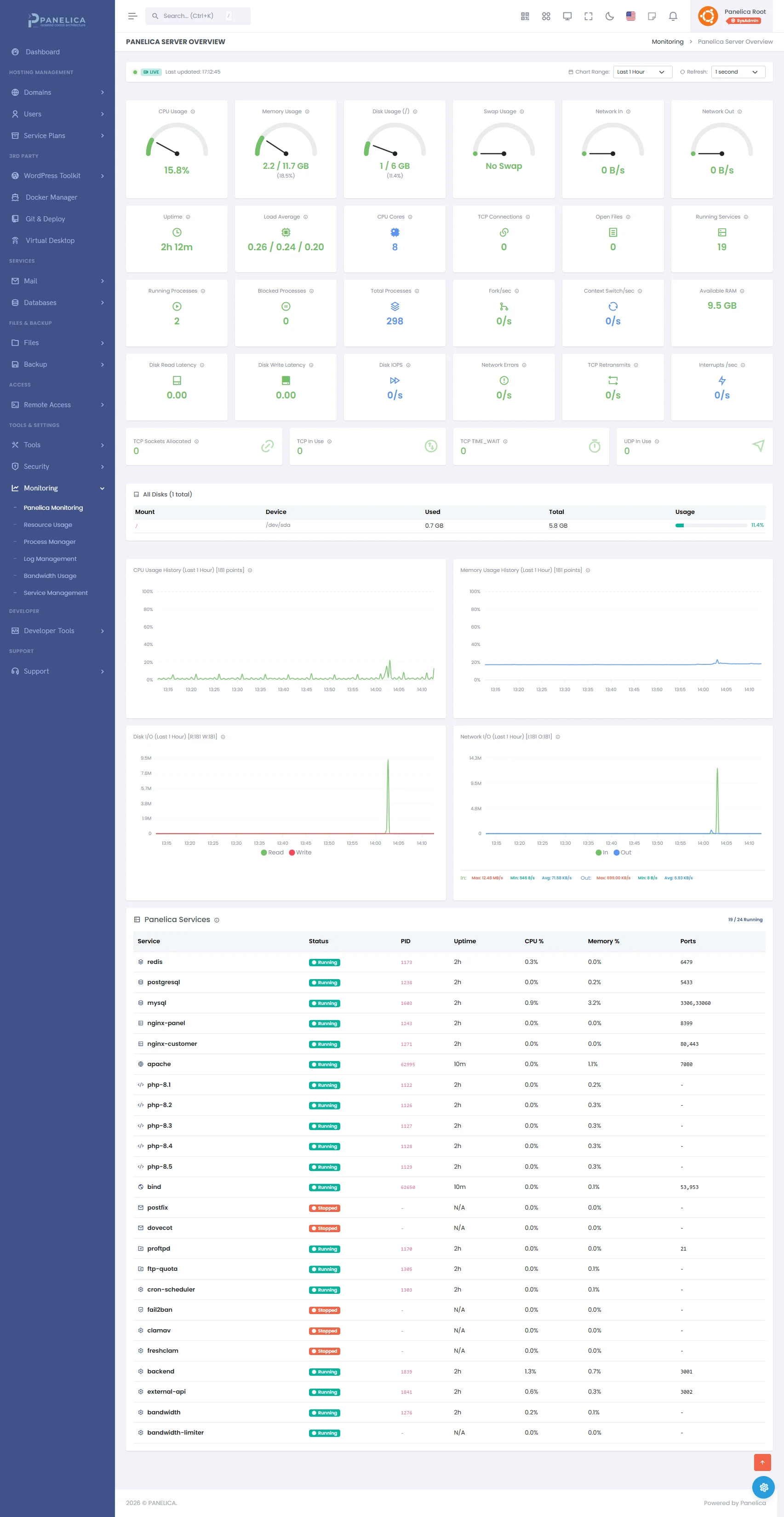
Panelica Monitoring — Real-time server metrics and performance tracking
A 502 at 3 AM is still possible. But the distance between "something went wrong" and "I know exactly what it is" shrinks significantly when your infrastructure is properly instrumented.
Conclusion
502 Bad Gateway errors are always fixable. There are only so many things that can go wrong between Nginx and your backend, and once you know where to look, the diagnosis is usually straightforward:
- Read the Nginx error log first — it usually tells you exactly what failed
- Check if the backend is running and listening on the right socket/port
- Check system resources (RAM, disk) for OOM kills or full disks
- Check application logs for crashes or fatal errors
- Check security modules and firewalls if everything else looks fine
The most important habit is reading logs before guessing. The error message in /var/log/nginx/error.log almost always points directly at the problem. Start there, follow the chain, and you'll have the site back up before the coffee gets cold.