There are things you can do in a terminal and things that are easier with a mouse. Browsing log files, managing files visually, running a graphical database client, or debugging a web application in a real browser — these tasks are possible over SSH, but they are faster and simpler with a desktop.
The problem has always been getting that desktop. Setting up VNC on a remote server means installing packages, configuring display managers, opening firewall ports, setting up SSH tunnels or SSL certificates, and finding a VNC client that works on your machine. Most administrators skip it entirely because the setup cost outweighs the convenience.
Panelica solves this with a built-in Virtual Desktop. One click to install, one click to start, and you have a full XFCE desktop environment running in your browser — no VNC client, no port forwarding, no additional firewall rules. It runs through your existing panel connection.
In This Article
1. What Is Virtual Desktop
Virtual Desktop is a browser-based graphical environment that runs directly on your server. Under the hood, it uses three technologies working together:
- XFCE4 — a lightweight, fast Linux desktop environment that uses minimal resources
- TigerVNC — a high-performance VNC server that renders the desktop at 1920x1080 resolution with 24-bit color
- noVNC + WebSockify — a web-based VNC client that connects through WebSocket, so it works in any modern browser without installing anything
The result is a full graphical desktop — with a taskbar, a file manager, a terminal, and a web browser — accessible through the same panel URL you already use. No extra ports. No VNC client software. Just your browser.
2. Why a Server Panel Needs a Desktop
A command-line terminal covers 90% of server administration tasks. But the remaining 10% is where a graphical environment makes the difference:
Visual file management. Comparing directory structures, moving files between locations, previewing images or documents — tasks that require dozens of ls, cp, and cat commands become drag-and-drop operations.
Browser-based debugging. When a website is not rendering correctly, you need to see it in a real browser. Opening Chrome directly on the server — with access to localhost URLs that are not exposed to the internet — lets you inspect and debug without exposing development ports.
Graphical tools. Some tools are simply better with a GUI. Database visual management, log viewers with search and highlighting, system monitors with real-time graphs, and text editors with syntax highlighting and multiple tabs — these exist in the terminal, but their graphical counterparts are often faster to use.
Emergency access. If your SSH configuration breaks, your firewall locks you out of port 22, or your terminal session keeps disconnecting — a desktop running through the panel's HTTPS port gives you an alternative path into the server.
Client demonstrations. Showing a client how their server is performing, walking them through a configuration, or demonstrating a deployment — screen sharing a graphical desktop is far more intuitive than narrating terminal output.
3. What Is Included
When you install Virtual Desktop, six components are set up automatically:
XFCE4 Desktop
Lightweight desktop environment. Fast, stable, low memory usage. Includes panels, window management, and session handling.
TigerVNC Server
High-performance VNC server. Renders at 1920x1080, 24-bit color. Handles keyboard, mouse, and display updates.
noVNC Client
Web-based VNC viewer. Connects through WebSocket. Works in Chrome, Firefox, Safari, and Edge without plugins.
Google Chrome
Pre-configured with server-appropriate flags. Desktop shortcut ready. Opens a welcome page on first start.
Terminal Emulator
XFCE Terminal with full shell access. Tabs, customizable fonts, and color schemes. Direct root access.
Thunar File Manager
Graphical file browser with tree view, bookmarks, and bulk operations. Drag and drop between locations.
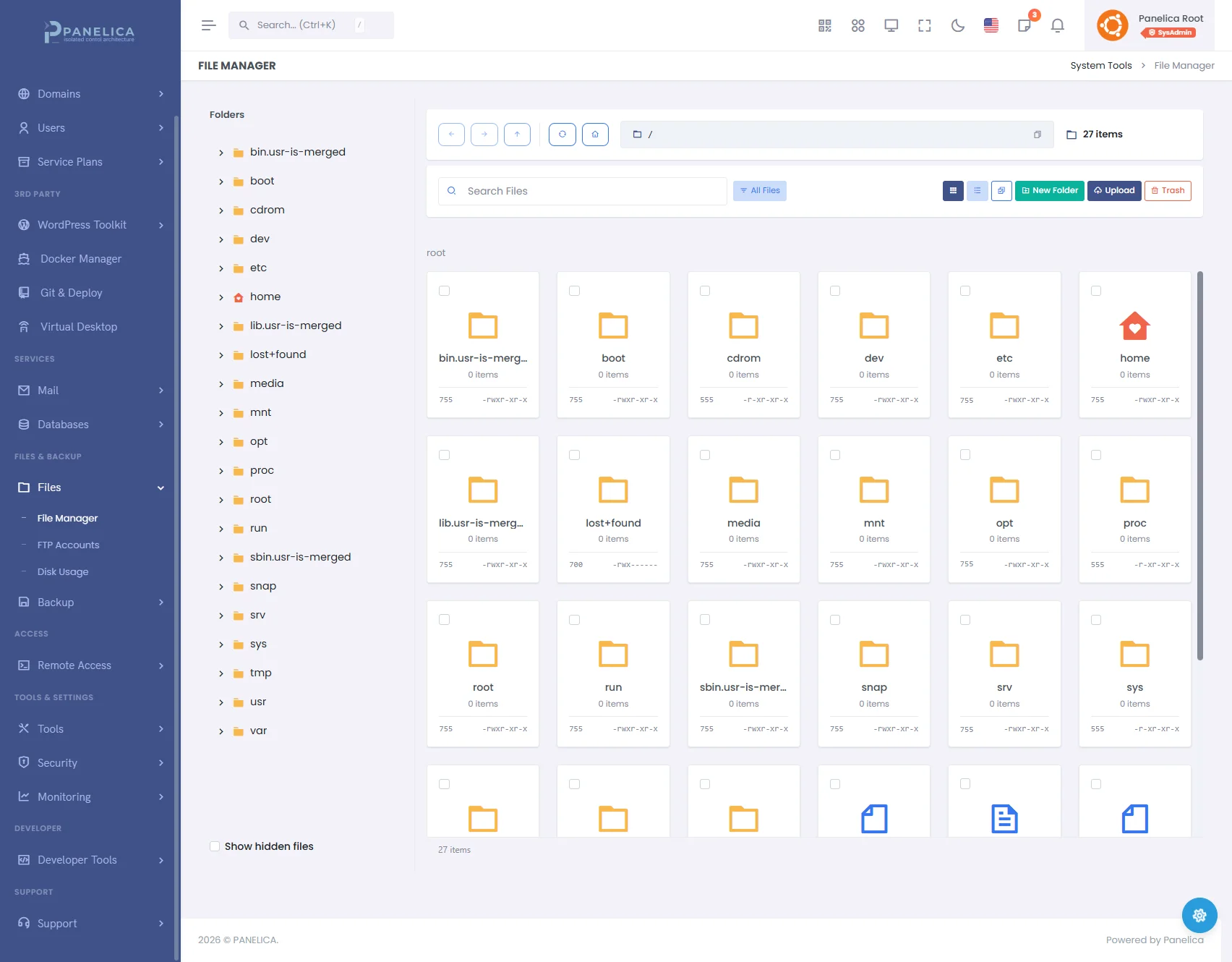
Panelica File Manager — Full file management with built-in code editor
The desktop renders at 1920 x 1080 resolution with 24-bit true color and scales to fit your browser window. Clipboard support is enabled — you can copy text on your local machine and paste it into the remote desktop, and vice versa.
4. How to Set It Up — Three Steps
Navigate to Remote Access → Virtual Desktop in the sidebar. The setup takes three steps:
Install Desktop
Click Install Desktop. The system downloads and configures all packages (XFCE4, TigerVNC, noVNC, Chrome, and dependencies). This takes approximately 15 to 25 minutes depending on your server's internet speed and hardware. You only need to do this once.
Start Desktop
Click Start Desktop. The VNC server and noVNC proxy start in about two seconds. The status badge changes to Running (green).
Connect
The desktop loads directly in your browser as a full-screen panel within the Panelica interface. When prompted for the VNC password, enter the one-time password shown on the Virtual Desktop page when you start the session (each session gets a fresh random password). You are now in a full XFCE desktop with Chrome, a file manager, and a terminal — all running on your server.
VNC Display:
:99 | VNC Port: 5999 | Access: via panel port | Password: random per session | Resolution: 1920 x 1080 | Encryption: SSL/TLS
The toolbar at the top shows the connection status, display number, and VNC password. You can also open the desktop in a separate browser window for a distraction-free full-screen experience, or restart the session if needed.
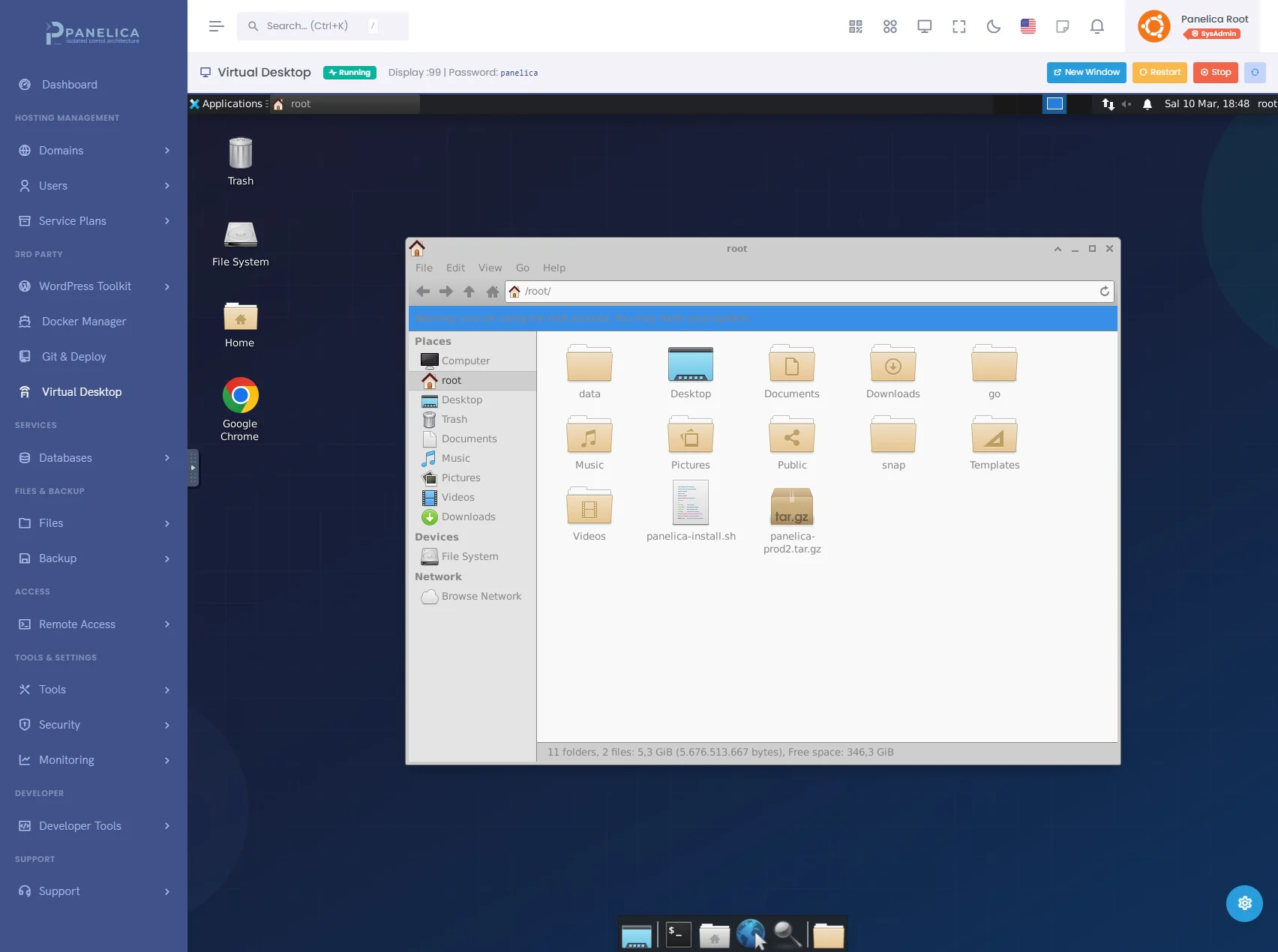
Virtual Desktop running inside Panelica — a full XFCE environment with Chrome, file manager, and terminal, accessible directly from the panel.
5. Security Architecture
A graphical desktop on a server is a powerful capability. Powerful capabilities require strong security controls. Virtual Desktop is protected by four layers:
ssh_access feature enabled. Without a qualifying license plan, the feature is locked behind an overlay that explains the requirement.localhost — it is not accessible from the network. All traffic flows through Nginx's SSL/TLS proxy on the panel port. The WebSocket connection between your browser and the server is encrypted end-to-end. No additional ports need to be opened in the firewall.6. What System Administrators Can Do
With a graphical desktop running on your server, several workflows become significantly easier:
| Task | Terminal Approach | Desktop Approach |
|---|---|---|
| Browse log files | tail -f, grep, less |
Open in a text editor with search, syntax highlighting, and multiple tabs |
| Compare directories | diff -rq dir1/ dir2/ |
Open two Thunar windows side by side, visually scan differences |
| Test a website | curl -s + read HTML |
Open Chrome, navigate to localhost, use DevTools to inspect |
| Monitor resources | htop, iotop |
XFCE Task Manager with real-time graphs, or install Stacer for a visual system monitor |
| Edit configuration | nano or vim |
Mousepad with syntax highlighting, find/replace, and line numbers |
| Manage databases | psql or mysql CLI |
Open phpMyAdmin or pgAdmin in Chrome on localhost — no public exposure needed |
| Debug email | Read raw headers in terminal | Open Roundcube in Chrome, send test emails, inspect rendering |
| Transfer files | scp, rsync |
Drag and drop in Thunar, or use Chrome to download directly to the server |
You can also install additional tools as needed. Since this is a full Linux desktop, apt install works normally — install VS Code for development, install GIMP for image editing, or install Wireshark for network analysis. The desktop is your workspace; customize it as you see fit.
7. What Makes It Different
There are other ways to get a graphical environment on a server. Here is why the built-in approach matters:
Zero configuration. No package selection, no display manager setup, no VNC configuration files, no firewall rules, no SSL certificates for the VNC connection. One button handles everything.
Single port. Everything runs through your panel's HTTPS port. In environments where only specific ports are allowed through the firewall — corporate networks, cloud security groups, restrictive NAT setups — this is the difference between "it works" and "I need to file a ticket with IT."
WebSocket streaming. The connection between your browser and the desktop uses WebSocket over HTTPS, not raw VNC protocol. This means it works through web proxies, load balancers, and CDNs that would block traditional VNC traffic.
Clipboard integration. Copy text on your local machine, paste it into the remote desktop. Copy output from the remote terminal, paste it into your local notes. The clipboard bridge works both directions through the browser's Clipboard API.
Integrated lifecycle. Start, stop, restart, and uninstall are panel operations with status badges and confirmation dialogs — not SSH commands you need to remember. The panel tracks whether the desktop is running, installed, or stopped, and shows the appropriate controls.
8. When to Use It and When Not To
Use Virtual Desktop when:
- You need to test a website in a real browser running on the server
- You want visual file management for complex directory operations
- You need to access localhost-only web interfaces (phpMyAdmin, pgAdmin, Roundcube) without exposing them to the internet
- Your SSH access is broken and you need an alternative way into the server
- You are demonstrating something to a client and need a visual interface
- You want to run graphical tools (database clients, system monitors, editors) that do not have good terminal equivalents
Use the terminal instead when:
- You are editing a single configuration file —
nanoor the built-in web terminal is faster - You are running automated scripts or batch operations
- You are on a slow connection where graphical rendering would be sluggish
- The task is purely text-based (reading logs, checking service status, restarting services)
Virtual Desktop is one of those features that you do not think about until you need it — and when you do, you are glad it is there. A full graphical environment on your server, secured behind four layers of authentication and encryption, accessible from any browser, and manageable with the same interface you use for everything else. No SSH tunnels. No VNC clients. No open ports. Just a desktop, when you need one.