Low-resource mode puts a hard limit on how fast a Panelica backup may read and write the server's disk, so the websites it is backing up keep responding while it runs. You choose Automatic, Light, Balanced, High or a custom value in MB/s under Panel Settings › Backup. Automatic measures the disk once and lets a backup use about half of its speed. The limit applies to manual and scheduled, full and incremental backups. Servers that update keep their backups as fast as before until you turn it on; new installations start with Automatic.
Why a Backup Can Take Your Sites Down
A backup reads every file and every database of every account, compresses the stream and writes the archive. On a busy server that is the single heaviest disk job of the day, and it competes with the websites for the same disk. When the backup wins, PHP workers wait for the disk to load a session or a template, new requests queue up behind them, and a proxy in front of the site eventually gives up with a 504. The site looks down although nothing has crashed.
The classic answer is to run the backup at a lower CPU and I/O priority, and Panelica already does that with nice and ionice. It is not enough on today's servers. With the default I/O schedulers of current kernels for virtual and NVMe disks (none and mq-deadline), ionice's priority classes have little or no effect, and on many cloud disks the real ceiling is a throughput or IOPS budget set by the provider, which no priority can enlarge. A backup started at the lowest priority still takes the whole budget.
How Low-Resource Mode Works
When a backup starts, Panelica creates a control group with a hard read and write limit (the cgroup v2 io.max setting) on the disk that holds the panel's data. The programs that do the heavy lifting — the archiver, the compressor and the database dump tools — are started directly inside that group, so the kernel never lets them read or write faster than the limit, whatever the disk scheduler. Everything else on the server, including every website, keeps the rest of the disk.
The limit is removed when the last running backup finishes. An incremental backup that has to fall back to a full one keeps the same limit throughout. If the server cannot apply the limit (no cgroup v2, for example), the backup simply runs with the old low-priority behaviour: low-resource mode never makes a backup fail, at worst it quietly does less.
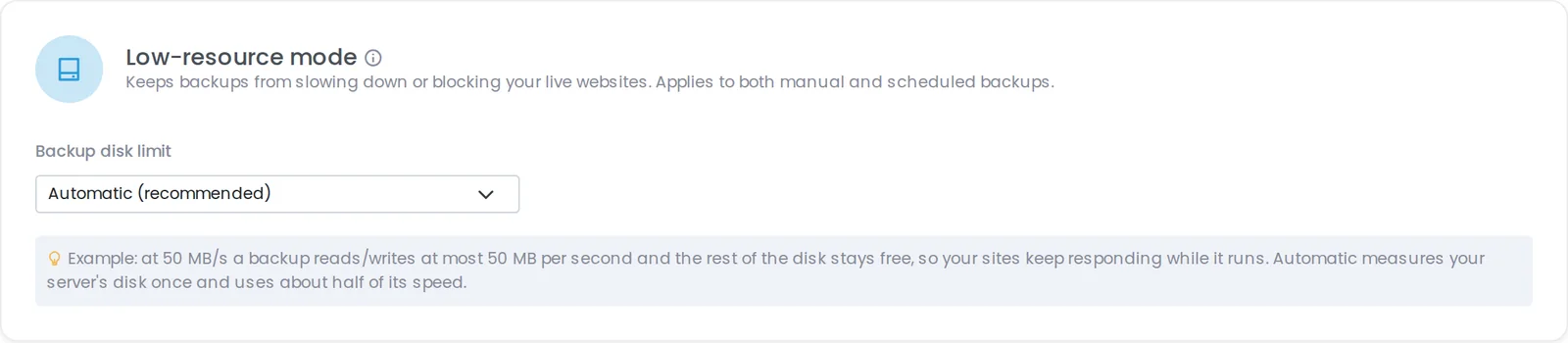
Panel Settings › Backup › Low-resource mode.
The Modes
| Mode | Disk limit for backups | When to use it |
|---|---|---|
| Off | No limit, low priority only | Backups run at night on a quiet server and finish fastest |
| Automatic (recommended) | About half of the measured disk speed, between 25 and 400 MB/s | Most servers; adapts to fast NVMe and slow network disks alike |
| Light | About 20 MB/s | Small VPSs with network storage and busy daytime traffic |
| Balanced | About 50 MB/s | A sensible middle ground when you want a fixed, predictable value |
| High | About 120 MB/s | Fast local disks where the backup window matters more |
| Custom | Any whole number from 1 to 10,000 MB/s | When you know your disk and your traffic |
How Automatic measures the disk
The first backup in Automatic mode writes a 128 MB test file to the backup disk, flushes it to the physical device and times it. Half of that speed becomes the limit, kept between 25 and 400 MB/s so it is never absurdly slow on a struggling disk nor effectively unlimited on a very fast one. The result is reused for 14 days, then measured again. If the measurement fails or looks implausible, the Balanced value is used.
What It Costs: Time
A limit protects the websites by making the backup take longer. A rough minimum for reading a given amount of data at each preset, before compression and any upload to remote storage:
| Data to back up | Light (20 MB/s) | Balanced (50 MB/s) | High (120 MB/s) |
|---|---|---|---|
| 10 GB | about 9 minutes | about 3.5 minutes | about 1.5 minutes |
| 50 GB | about 43 minutes | about 17 minutes | about 7 minutes |
| 200 GB | about 2 hours 50 minutes | about 68 minutes | about 28 minutes |
Incremental backups copy only what changed since the last run, so after the first full backup the daily cost is usually a small fraction of these figures. That is why the combination of incremental schedules and a moderate limit works well on busy servers: the full backup is slow once, the daily ones stay short and invisible to visitors.
Existing Servers and New Installations
Changing how fast backups run is a decision for the administrator, so servers that receive this update keep low-resource mode Off and back up exactly as fast as before. New installations start with Automatic. To turn it on, open Panel Settings › Backup, choose a mode under Low-resource mode and save; the next backup uses it. Nothing else about your schedules, destinations or retention changes.
Works With the Rest of the Backup System
Low-resource mode covers full and incremental backups, whether you start them by hand or a schedule runs them. Uploads to Amazon S3 and other S3-compatible storage, Google Cloud Storage, Google Drive, Azure or SFTP start from the archive the backup wrote, so a gentler backup does not change where your copies end up. Restores of single files, databases or email accounts work exactly as before; see Granular Backup Restore and Remote Backups in Panelica for both sides of that workflow.
Frequently Asked Questions
Will low-resource mode make my backups slower?
Yes, that is the trade: a backup that may not use the whole disk takes longer. With Automatic, the limit is half of what the disk can do, which on a modern NVMe disk is still several hundred MB/s.
Does it limit CPU as well?
The hard limit is on disk reads and writes, which is what makes sites wait. Backups also keep running at a lower CPU priority, as they always have.
Why is it off on my existing server after the update?
So that an update never changes how long your backups take without your decision. Turn it on in Panel Settings › Backup whenever you like.
What happens if my server does not support the limit?
The backup runs anyway, with the low-priority behaviour from before. Low-resource mode never stops a backup from being taken.
Which mode should a small VPS use?
Start with Automatic. If the provider's disk is slow or shared and your sites are busy during the backup, Light (about 20 MB/s) gives them the most room.