Panelica VPS Manager turns the server that already hosts your websites into a host for full Linux servers. Each VPS is an Incus system container with its own root account, users, packages, services, cron, files and network address. You create it from the panel in a few steps, give it CPU, memory, disk and bandwidth limits, reach it over SSH or a browser terminal, and send a domain's visitors to a port inside it with SSL handled by the panel. Tools inside the VPS such as free, top and htop show the resources you gave that VPS, not the whole server. VPS Manager installs only when the root administrator asks for it, so servers that never use it are not touched.
Why a Full Linux Server Inside the Panel
Docker is the right tool for packaged applications. Some work does not fit a single application container, though: a Node.js or Python app with its own database, queue and cron jobs; an AI agent or bot that needs root and its own packages; a staging copy where you try a distribution upgrade or a risky script; a customer who asks for "a server of my own" with SSH access. Until now that meant renting another machine or running a separate virtualisation stack next to the panel. VPS Manager keeps it on the server you already pay for, managed from the same place as your sites, DNS, certificates and backups.
VPS, Docker container or virtual machine?
| Question | Docker container | Panelica VPS | Full virtual machine |
|---|---|---|---|
| What runs inside | One application and its process tree | A complete Linux system with init, services, cron and users | A complete operating system with its own kernel |
| Root, SSH, package manager | Usually not the way you use it | Yes | Yes |
| Kernel | The server's | The server's | Its own |
| Overhead | Lowest | Low: no second kernel, starts in seconds | Highest: memory reserved for a whole guest system |
| Windows or custom kernel modules | No | No | Yes |
Installing VPS Manager
VPS Manager is in the menu of every panel, but nothing is installed until the root administrator opens it and clicks Install. Before anything changes, the install page checks the server and shows the result of each check:
- cgroup v2 is in use and the server is not itself a container (a KVM or dedicated server works; an OpenVZ or LXC container does not)
- the kernel version, the LVM tools (installed by the setup when missing) and free disk space
- memory: the panel keeps the larger of 2 GB or 20% of RAM for itself and the server, and shows what is left for VPSs
- whether the package can be downloaded and the image server answers
The storage pool for VPS disks is created during setup, at least 5 GB, and at least 5 GB (or 10% of the disk) always stays free on the server. If a step of the installation fails, the server is put back as it was before.
Creating a VPS
The Create VPS wizard has six short steps: system, resources, network, security and start-up, access, and a summary. You pick a name, the account that owns the VPS, and one of ten images: Ubuntu 22.04, 24.04 and 26.04, Debian 12 and 13, AlmaLinux 9 and 10, Rocky Linux 9 and 10, or Alpine 3.24.
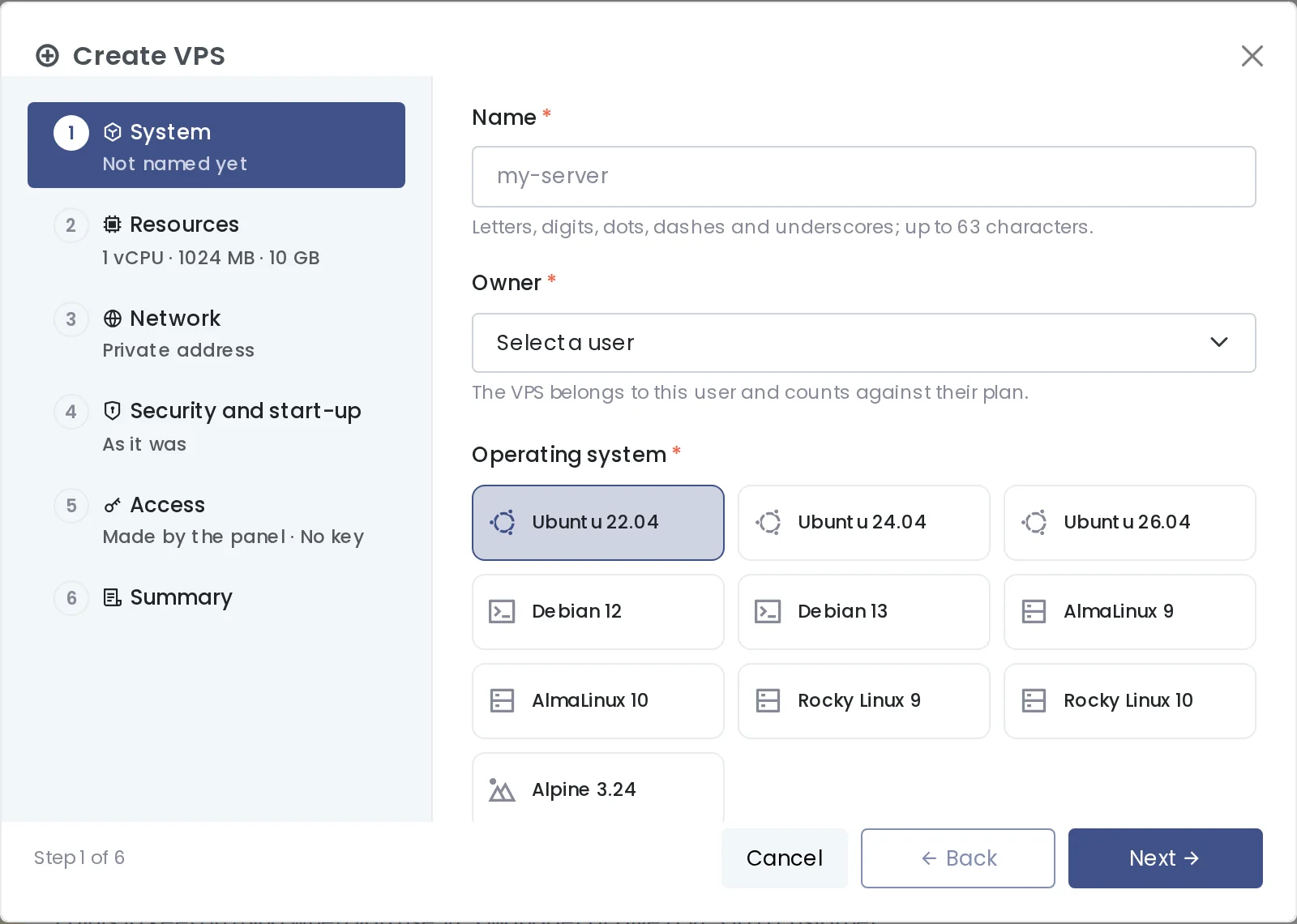
The Create VPS wizard: name, owner and operating system.
The root password is generated for you, or you set your own and add an SSH key. A generated password is shown once, when the VPS is created, reinstalled or its password is reset; the panel does not store it. The VPS shows up in the list at once and is usually running within a minute or two, with its address, limits, live memory and disk use, and its owner.
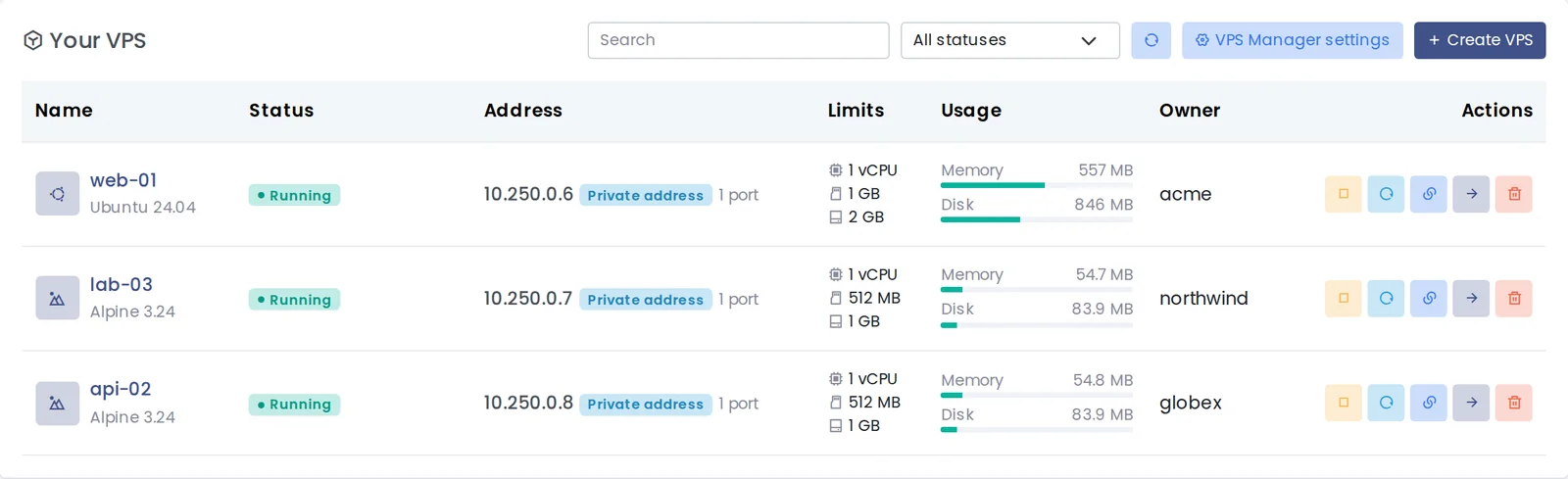
The VPS list: state, address, limits, live use and owner, with actions on every row.
Limits the VPS Itself Can See
Every VPS has a CPU limit, memory, swap, disk, a process limit and a bandwidth limit in Mbit/s. They can be changed on the Resources tab while the VPS keeps running; the disk can only grow. The tab shows where each ceiling comes from: the owner's plan, what the account has left, and what the server has free.
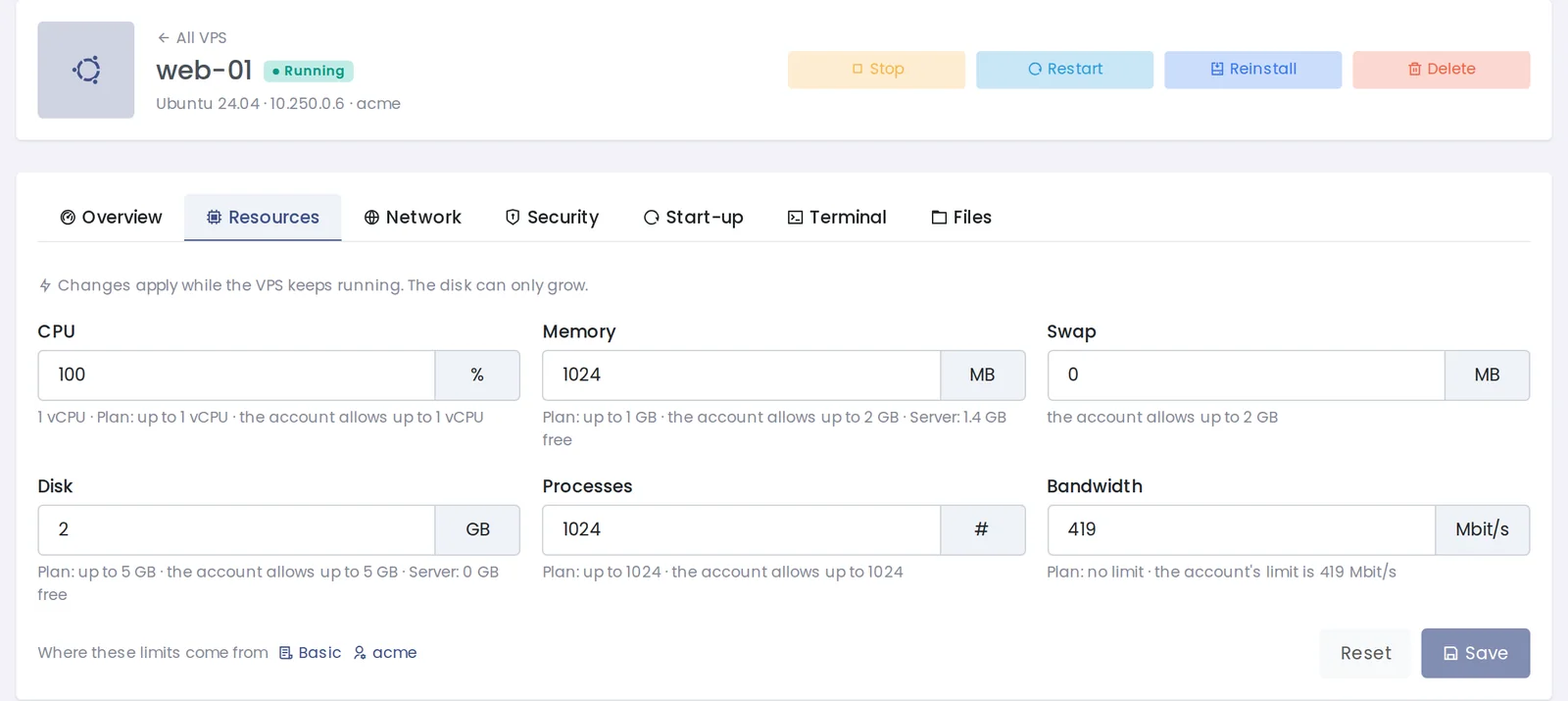
The Resources tab: changes apply without a restart.
Inside the VPS, the usual tools report those limits instead of the host's hardware. On a VPS with one vCPU and 1 GB of memory:
root@web-01:~# nproc
1
root@web-01:~# free -m | head -2
               total        used        free      shared  buff/cache   available
Mem:            1024          37         467           0         518         986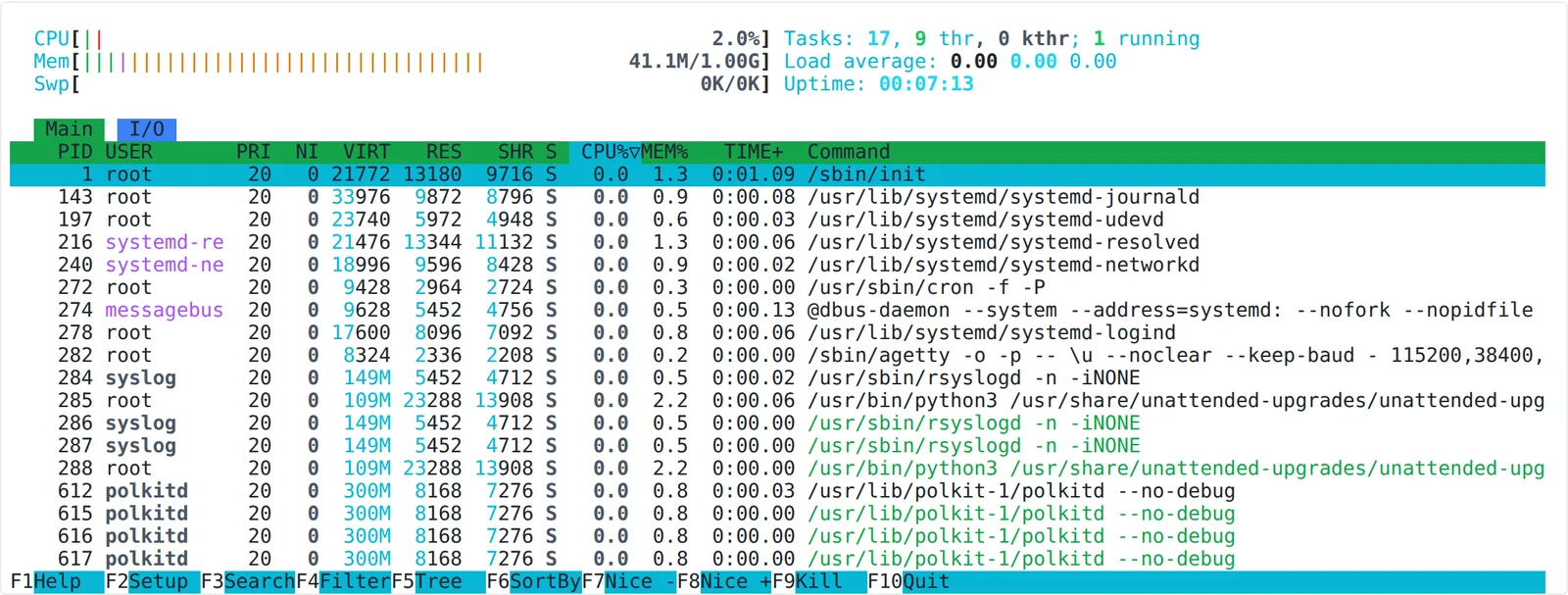
htop inside the VPS sees one CPU and 1.00G of memory.
That matters more than it looks. Software that sizes itself from available memory, such as database servers, PHP-FPM pools or Java applications, makes its decisions from the VPS's real budget, and the owner of the VPS is not confused by a dashboard showing 64 GB that they cannot use.
Network: Private Address, Port Forwards or a Dedicated IP
A new VPS gets a private address and an SSH port forwarded from the server, so it is reachable at once: the Overview tab shows the exact ssh and sftp commands. More forwards can be added on the Network tab, one port at a time or from a ready-made set such as Website (80, 443); a forward left without a server port takes the next free port of the VPS port range (30000–39999 by default).
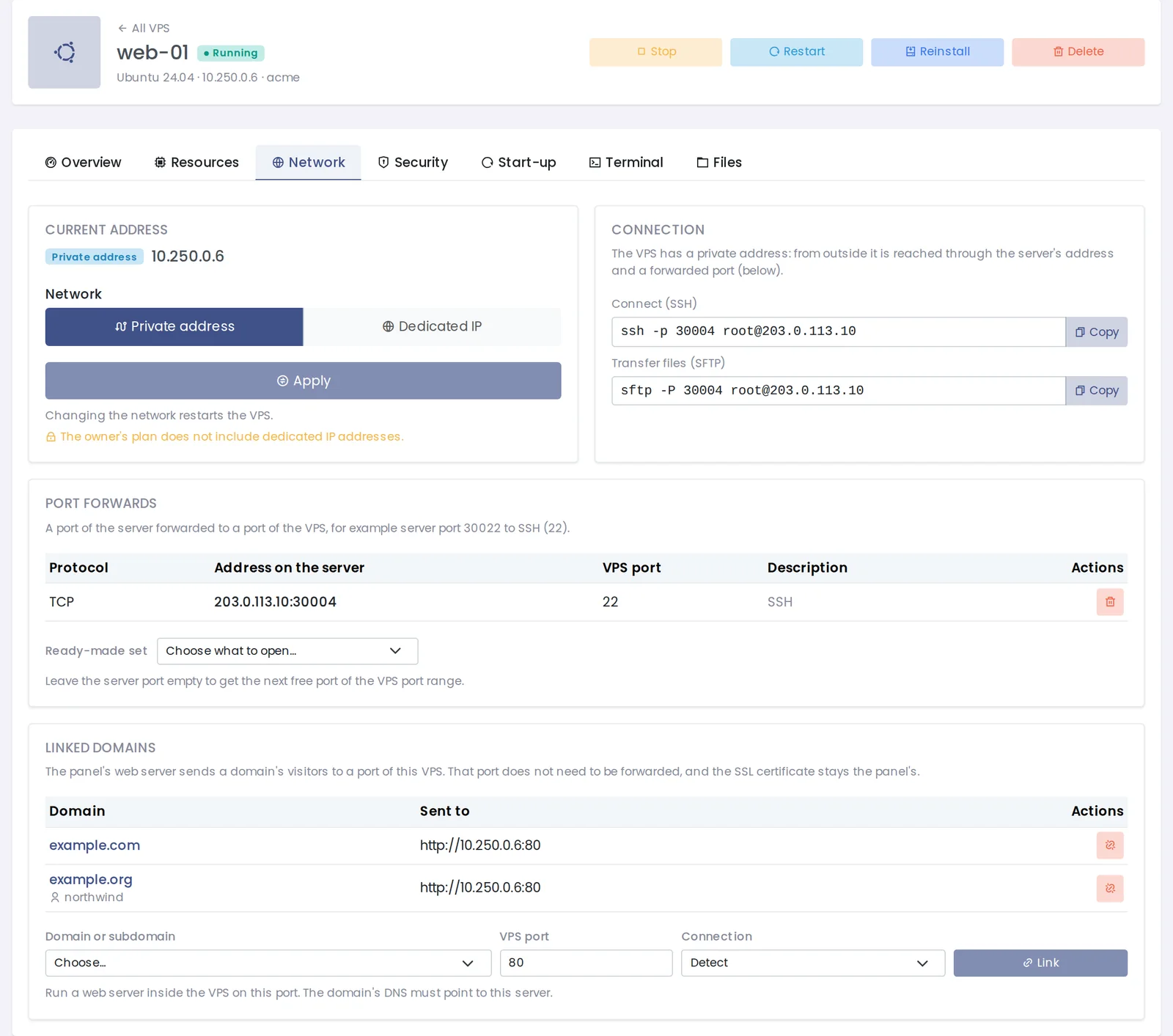
The Network tab: address, connection commands, port forwards and linked domains.
A VPS can also have an IP address of its own. The root administrator or an admin adds the address to the panel first, then picks it when creating the VPS or later on its Network tab; services in the VPS can then use any port on that address. If the server sits behind NAT or a cloud firewall, open the forwarded ports (or, for a dedicated address, the VPS's ports) there as well. Ports and addresses of a deleted VPS rest for a while (24 hours for ports, 72 hours for addresses) before another VPS can take them.
Sending a Domain to a VPS
A website running inside a VPS does not need a forwarded port. On the VPS's Network tab, or from the Linked domains action in the VPS list, you choose a domain or subdomain, the port the web server listens on inside the VPS, and whether the panel talks to it over HTTP, HTTPS or detects it. The panel's web server then sends that site's visitors to the VPS. The SSL certificate stays in the panel and renews like any other, and a site with a certificate redirects HTTP to HTTPS.
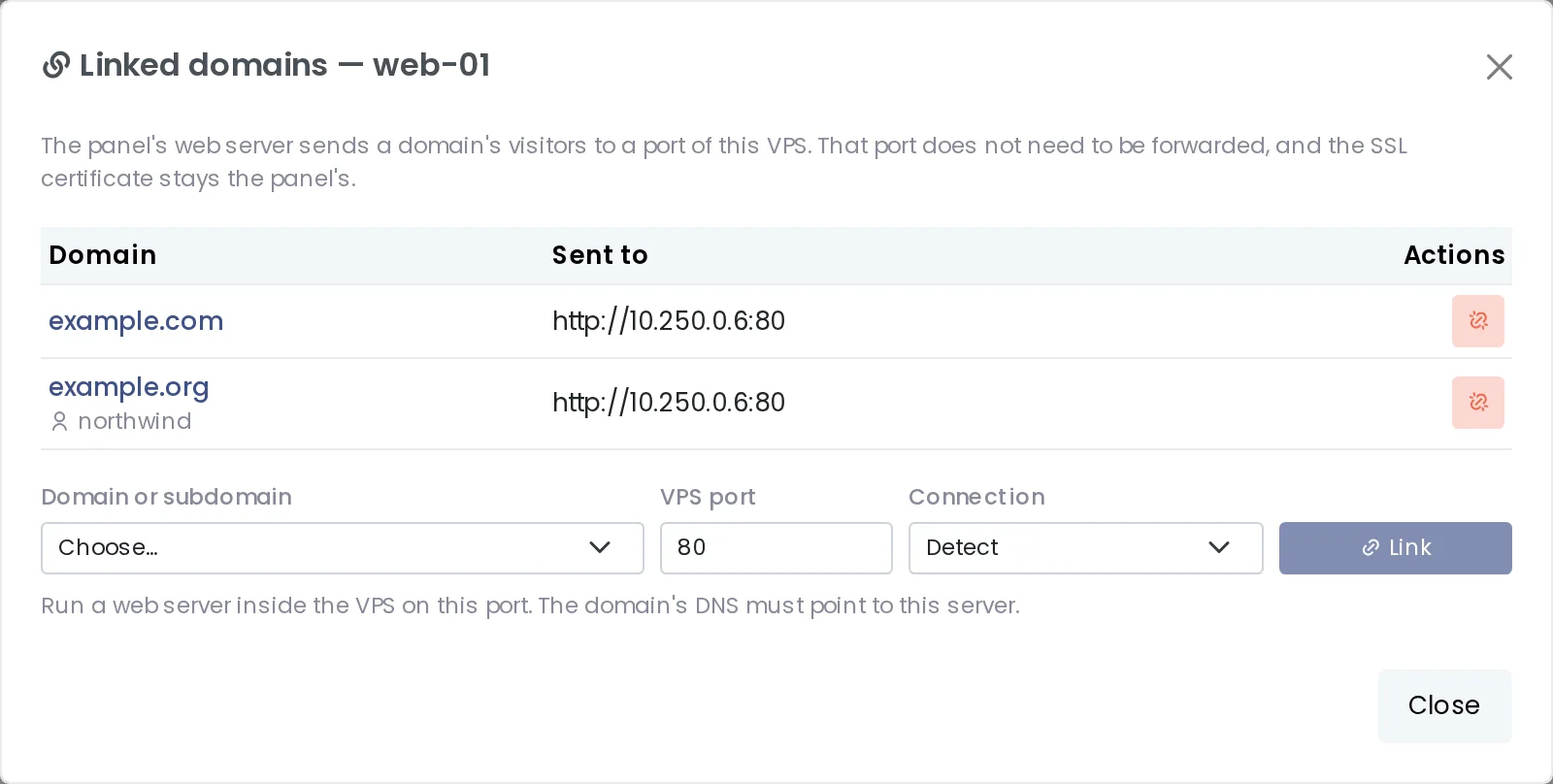
Linked domains, opened from the VPS list. A domain of another account shows its owner.
The root administrator can link any domain of the server to any VPS, the same way Docker containers are linked; administrators and resellers can link the domains of the accounts they manage, and users their own. Domains that cannot be linked are listed with the reason: already served by a Docker container or a Node.js, Python or Laravel app, linked to another VPS, suspended, or being moved to another account.
Unlinking writes the domain's own configuration back from its current settings, so a PHP version changed in the meantime is respected. While a VPS is stopped, its linked sites show the panel's error page within a few seconds and come back as soon as it runs again. Deleting a VPS returns its linked domains to their own configuration first. For the same workflow with containers, see Connecting a Domain to a Docker Container.
Sensible Defaults for Security
Each VPS runs under its own range of user IDs and cannot reach the other VPSs, the panel's internal services or the cloud provider's metadata address. Three switches on the Security tab change that, and each says why it is off when it cannot be turned on:
- Outgoing mail (port 25) — off by default, so a compromised script inside a VPS cannot put the server's address on spam lists.
- Containers inside the VPS — allows Docker or Podman inside the VPS when the owner's plan allows it.
- Private network — lets a VPS reach the same owner's other VPSs over the internal network.
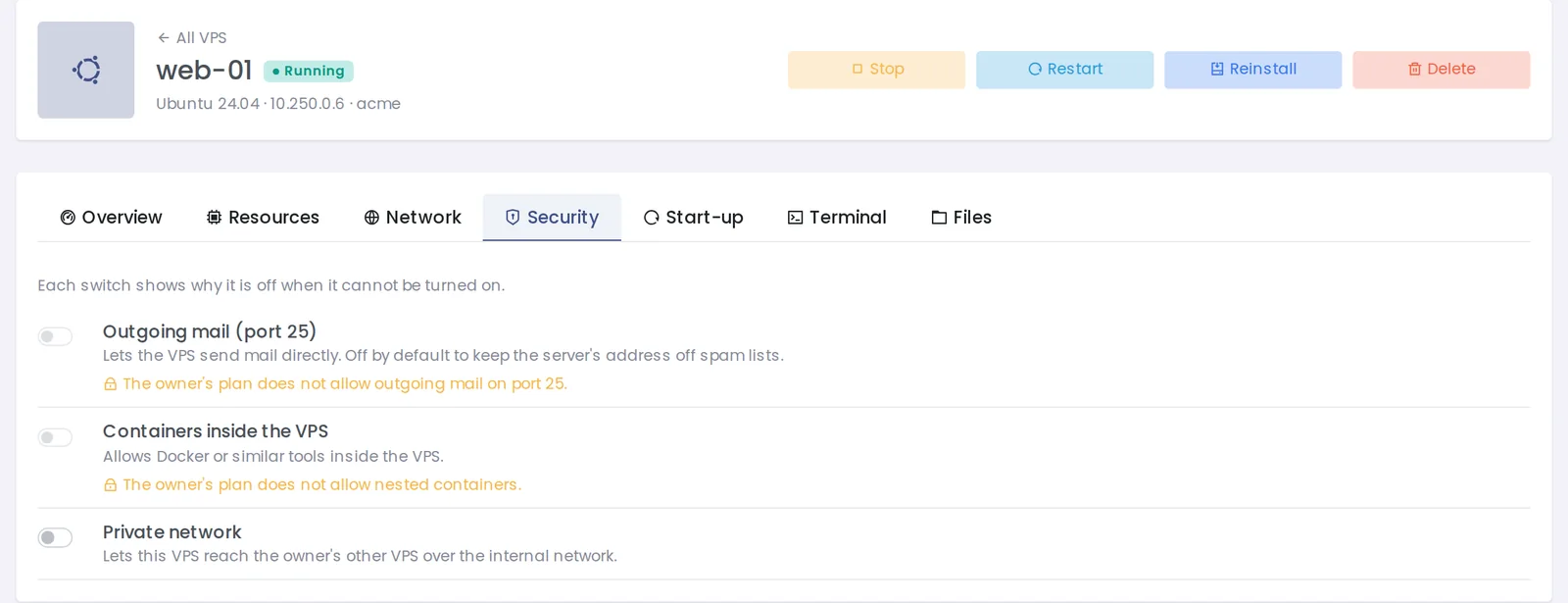
The Security tab.
Getting In: Terminal, Console, Files, SSH
The Terminal tab opens a root command line in the browser without SSH or a password; it stays open while you move to other pages and closes after 60 minutes without activity. The serial console shows the VPS's own console, which is the way in when its network or SSH is broken. The Files tab browses and edits files inside the VPS, and the Overview tab can reset the root password, manage SSH keys and turn password login off. The Start-up tab decides what happens when the server reboots: VPSs come back as they were, always start, or stay stopped.
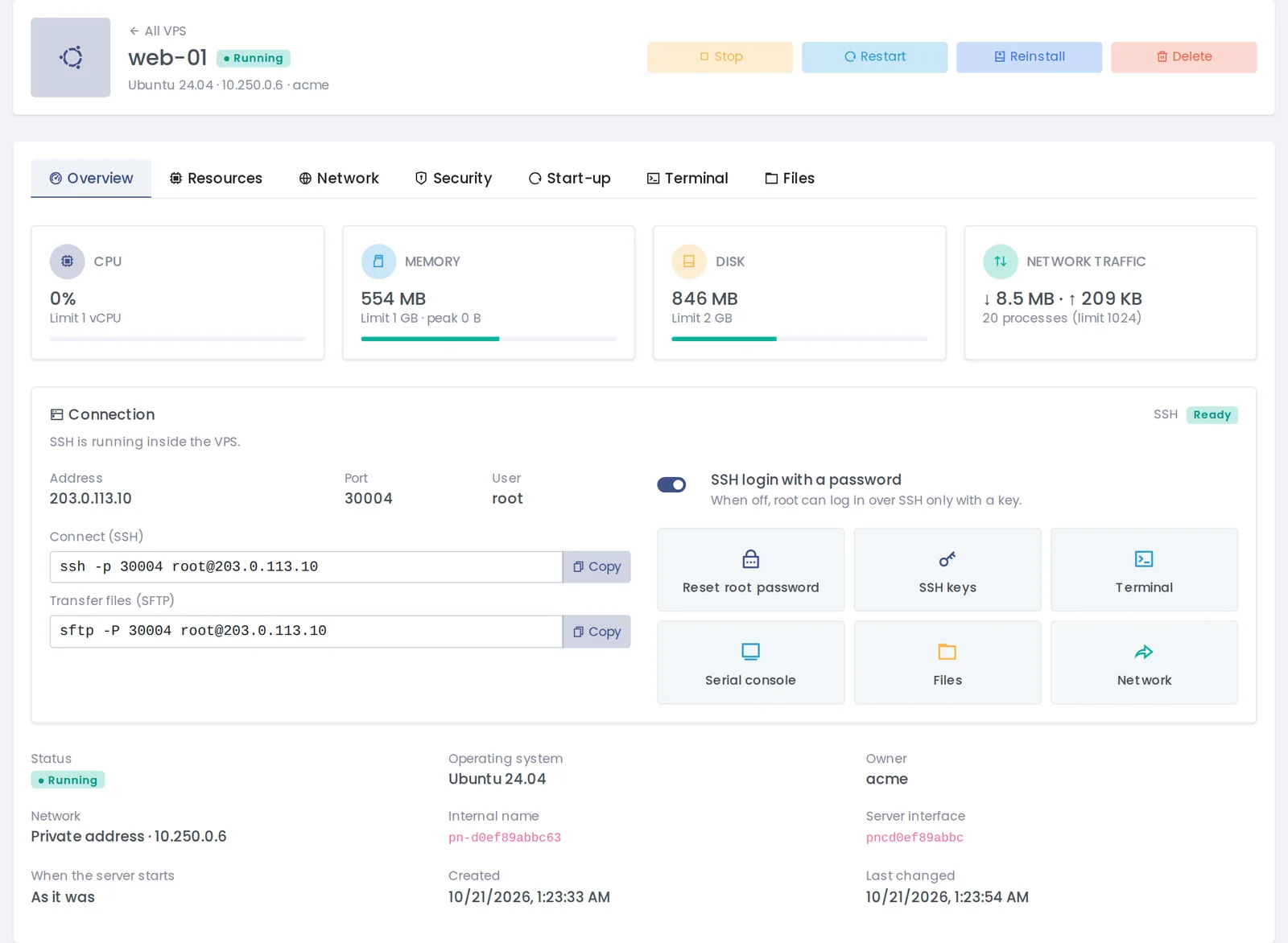
The Overview tab: live use, connection details and shortcuts to the terminal, console and files.
Plans, Customers and Automation
Hosting companies can offer VPSs to their customers within service plans: the number of VPSs, CPU, memory, disk, processes, bandwidth and dedicated addresses per account. All VPSs of an account together cannot exceed the account's totals, and three permissions — containers inside a VPS, outgoing mail and the number of dedicated addresses — can only be granted by the root administrator. Everything in VPS Manager is also available in the External API under /v1/isolated and on the command line:
panelica isolated list
panelica isolated create --help
panelica isolated domains link <vps-id> --domain-id <domain-id> --port 8080
What VPS Manager Does Not Do
A VPS shares the server's Linux kernel, so it cannot run Windows or load its own kernel modules; that is the price of starting in seconds without a second kernel in memory. VPS contents are not part of the panel's backups yet, and reinstalling or deleting a VPS erases everything inside it, so keep your own copies of important data. For workloads that need a separate kernel, a full virtual machine is still the right tool.
Frequently Asked Questions
Does VPS Manager work on a VPS from my hosting provider?
Yes, if that VPS is a full virtual machine, such as a KVM VPS; the Linux releases Panelica supports use cgroup v2 by default. It does not work when the server is itself a container, such as an OpenVZ or LXC VPS. The install page checks this before anything is changed.
How is a Panelica VPS different from a Docker container?
A Docker container runs one packaged application. A VPS is a whole Linux system with init, services, cron, users and a package manager, reachable over SSH. Use Docker templates for ready-made apps and a VPS when you need a server of your own.
Can a website on the server and a VPS share one IP address?
Yes. A VPS with a private address uses the server's address: its web server is reached through a linked domain and its other services through forwarded ports. A dedicated IP is only needed when a service must listen on its own address and standard ports.
Can I give my customers root access to their own VPS?
Yes. The VPS belongs to the account chosen when it is created and counts against that account's plan. The customer has root inside the VPS and cannot see the other VPSs, the panel or the sites on the server.
What happens to the VPSs when the server reboots?
By default each VPS comes back in the state it was in: running VPSs start again, stopped ones stay stopped. The Start-up tab can make a VPS always start or always stay stopped.