Panelica can now host PostgreSQL databases for your websites, next to MySQL. The root administrator installs a dedicated PostgreSQL server for customer sites with one click — separate from the database the panel itself runs on — and from then on every account can create PostgreSQL databases for its domains, each with its own user and password. The panel shows ready-to-paste connection details, including a connection string and a PHP PDO example, and the root administrator can open pgAdmin 4 from the same page with the PostgreSQL server already registered. PostgreSQL databases are included in server backups. The feature ships with panelica-server 1.0.551 on the beta update channel.
Why PostgreSQL, and Why Separately
A growing share of web applications expect PostgreSQL rather than MySQL: Django and most Python frameworks prefer it, many Node.js and Go services are written against it, Laravel and Rails support it first class, and tools like Mattermost, Discourse or Nextcloud run on it. Until now, hosting such an application on a panel server usually meant installing PostgreSQL by hand and managing users from the command line, outside the panel's view.
Panelica already runs PostgreSQL internally for its own data. That instance is not shared with websites, and it should not be: a customer database has no business sitting next to the panel's user table. So customer PostgreSQL runs as its own server on the standard port 5432, installed and updated as a separate component, while the panel's internal database stays on its own port, untouched.
Installing the Server
Open Databases › PostgreSQL as the root administrator. If the customer server is not installed yet, the page says so and offers an Install PostgreSQL button. The panel checks that port 5432 is free first; if something else already listens there, it tells you instead of installing over it. Accounts other than root see a short note asking them to contact the administrator until the server is installed.
Once it runs, the page shows four figures — databases, tables, connections against the server's limit, and total size — followed by the pgAdmin card and the list of databases.
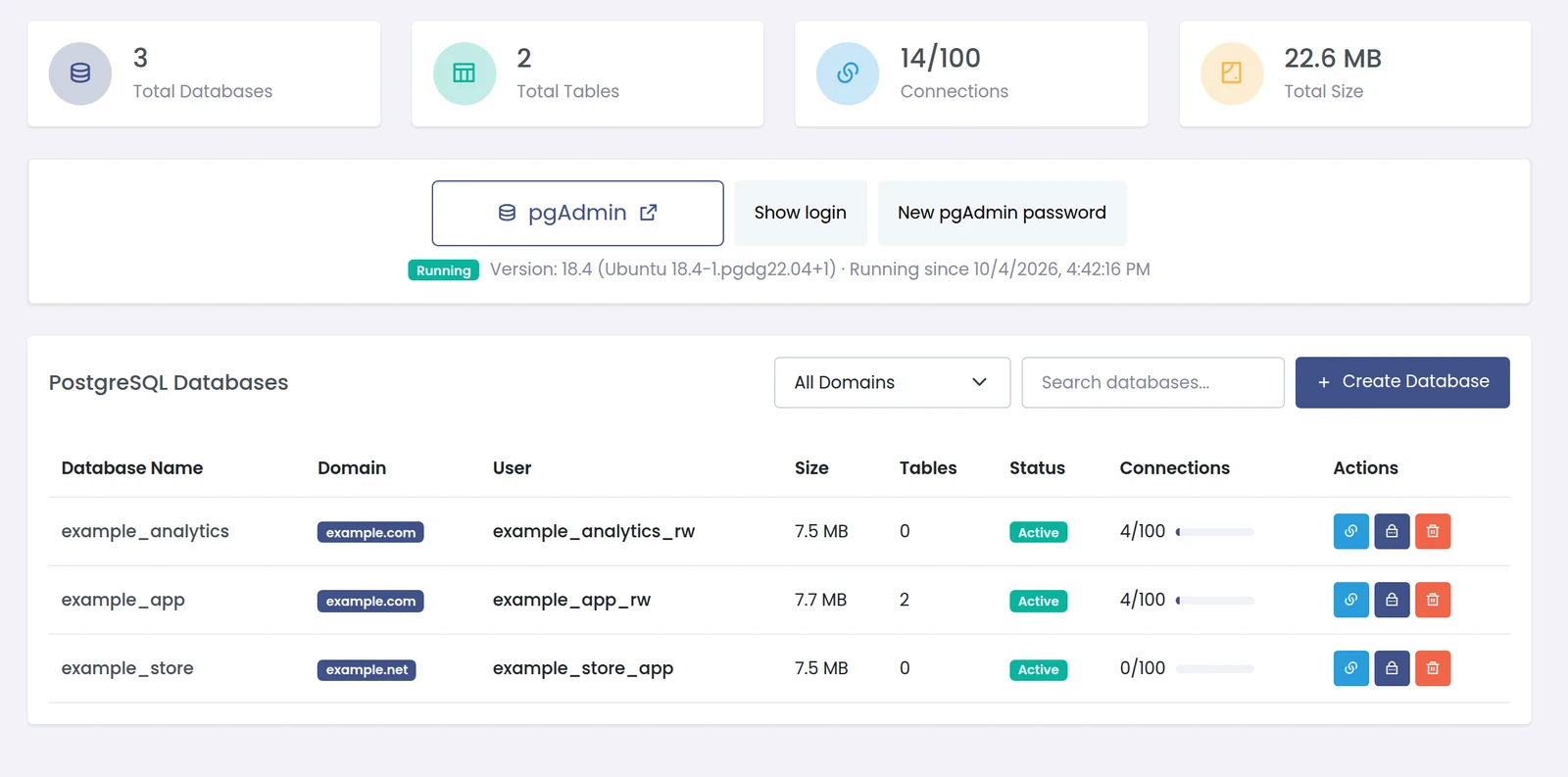
Databases › PostgreSQL: totals, the pgAdmin card with the server version, and the databases of each domain.
Creating a Database
Databases belong to a domain. Create Database asks for the domain, a database name and a user name, and fills in a generated password that you can regenerate or copy. Names follow the same rule as elsewhere in the panel — lowercase letters, numbers and underscores, starting with a letter — and get the domain's prefix, so two customers can both call their database store without clashing. The dialog shows the full name before you save.
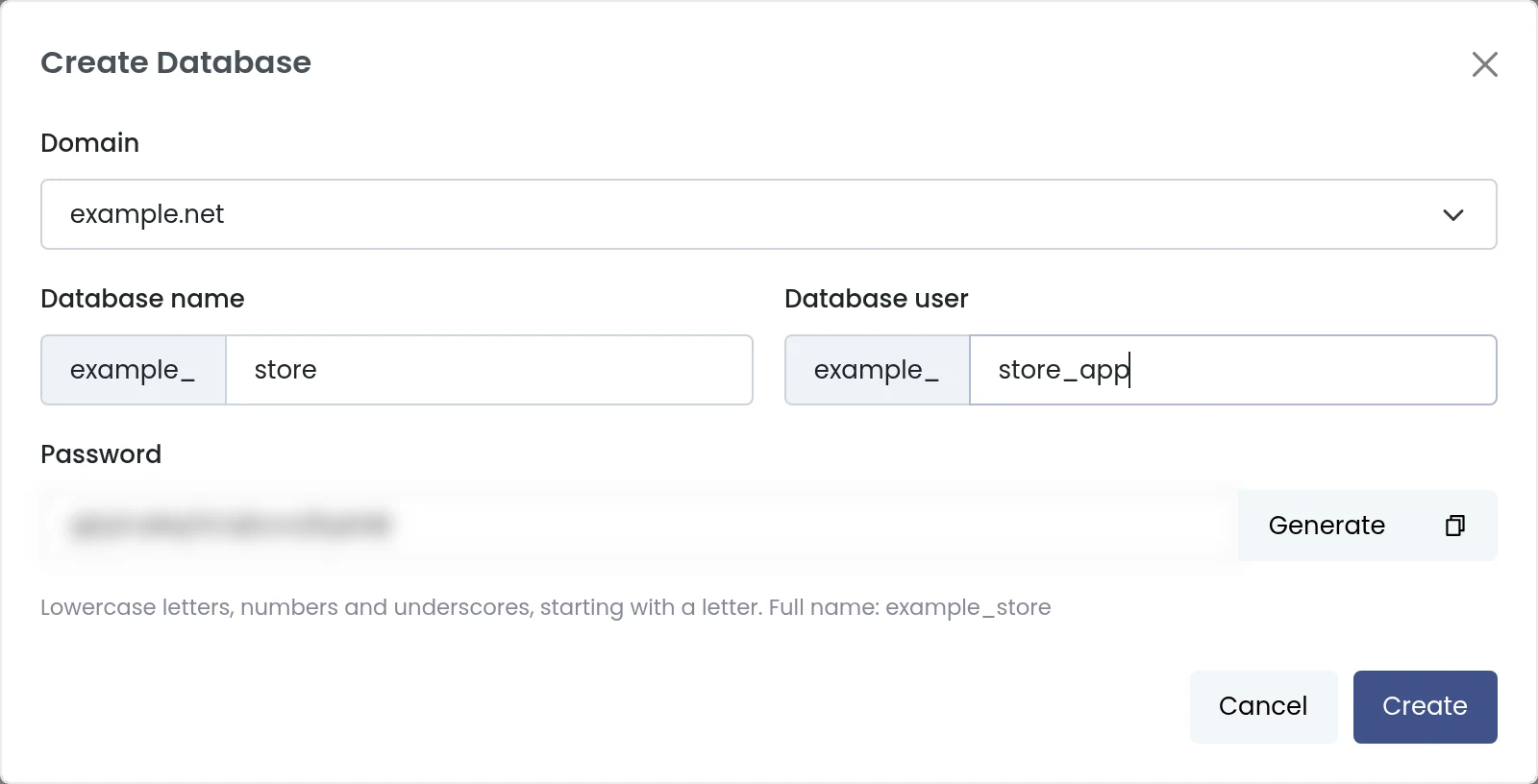
Creating a PostgreSQL database for a domain. The password is generated (blurred here) and the full prefixed name is shown below the fields.
Every database gets its own user, so a leaked password from one application does not open the others. Changing a password later is one action in the list, and deleting a database asks for an explicit confirmation.
Connecting Your Application
The link icon on each row opens the connection details: host, port, database, user and password (hidden until you press Show), plus a connection string and a PHP PDO line ready to paste into a configuration file.
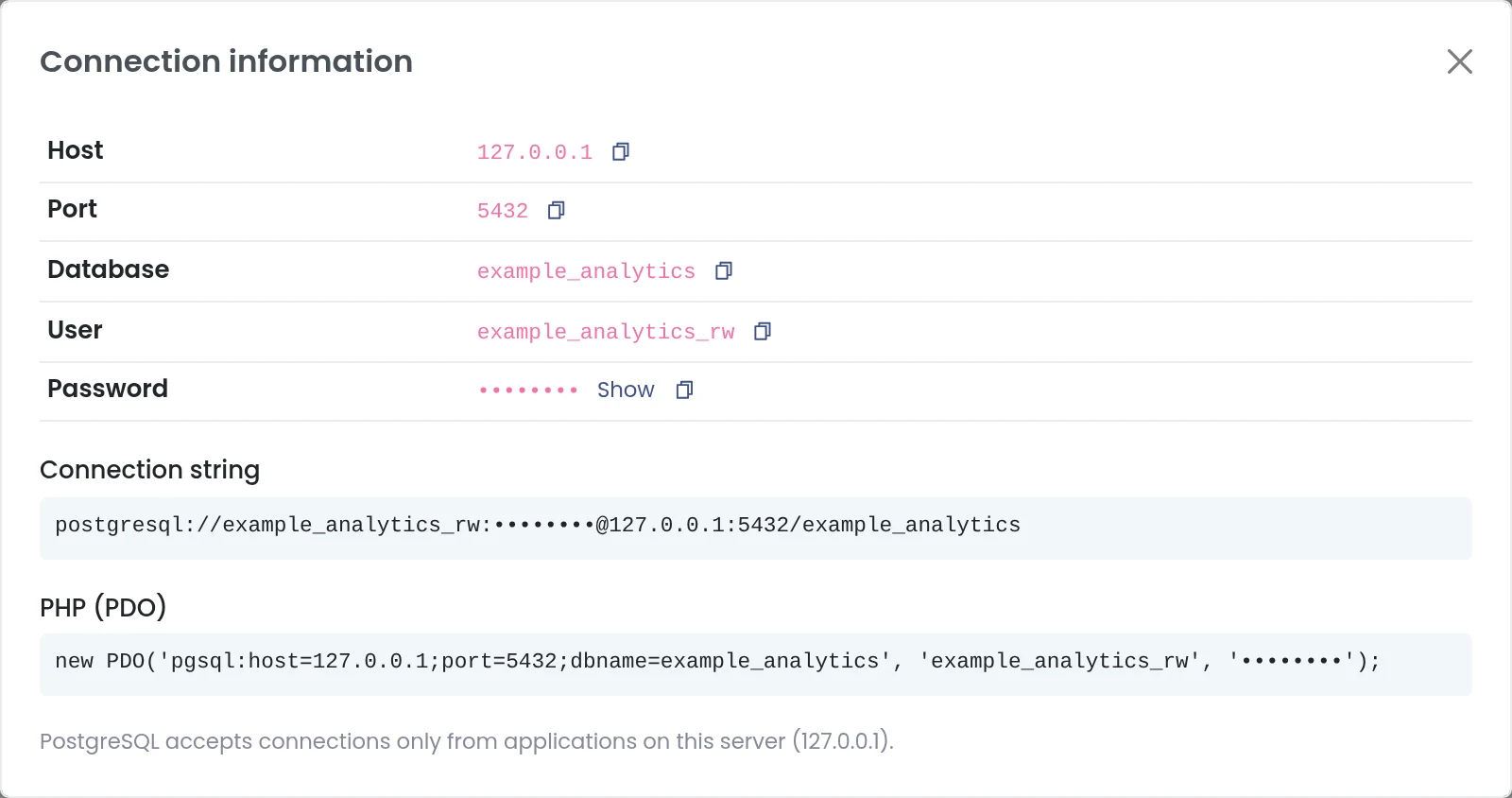
Connection details for one database, with a connection string and a PHP example.
The server accepts connections only from applications on the same machine, on 127.0.0.1. That is the right default for websites and keeps the database off the public internet. The same details work for any client library:
pgAdmin, Already Pointed at Your Server
For the root administrator, the pgAdmin card turns pgAdmin 4 on with one click. If the pgAdmin files are missing on the server, the panel installs them first, which can take a few minutes on a slow package mirror; the card refreshes on its own when it is done. pgAdmin is off by default and only runs while you have it enabled.
The card then offers three things: pgAdmin opens it in a new tab, Show login displays the pgAdmin e-mail and password, and New pgAdmin password replaces that password.
Inside pgAdmin, the server Customer PostgreSQL (5432) is already in the tree. pgAdmin connects to it over the local socket as the postgres superuser, so on the first connection, when pgAdmin asks for a password, leave the field empty and press OK. From there you have the full pgAdmin toolset: the object tree, the query tool, table editors, backups of single objects, and server statistics.
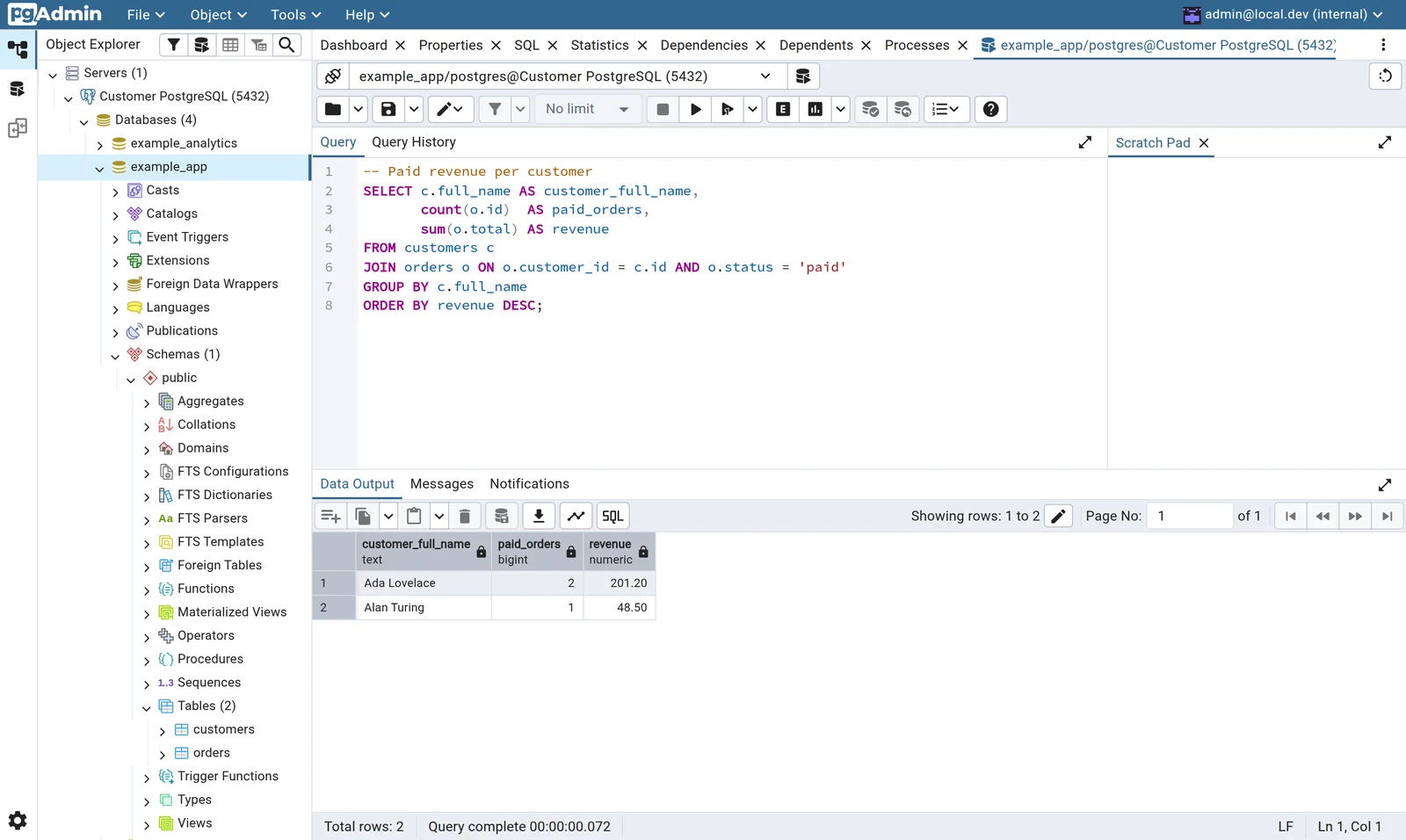
pgAdmin with the customer server registered: two tables in example_app and a revenue query with its results.
postgres unless you say otherwise, and the application's own user cannot use them. Run SET ROLE example_app_rw; at the top of the query, or create objects while connected as the application user, so they belong to the database's user.
Who Can Do What
| Task | Root administrator | Hosting account |
|---|---|---|
| Install the PostgreSQL server | Yes | No |
| Create, delete and change the password of databases for own domains | Yes | Yes, with the database permissions of the account |
| See connection details | Yes | Yes, for own databases |
| Enable and open pgAdmin | Yes | No |
Backups and Current Limits
Server backups include the PostgreSQL databases of the accounts they cover, and a full restore brings them back with their users. A few things are not covered yet, and it is better to know them before you rely on PostgreSQL for a project:
- Restoring a single PostgreSQL database from a backup (granular restore) is not available yet; restore works per backup.
- Panelica-to-Panelica migration does not carry PostgreSQL databases yet.
- PostgreSQL databases are not yet part of the External API and the command line tool.
For one-off exports, pgAdmin's backup and restore tools work on any single database in the meantime.
Getting Started
Frequently Asked Questions
Is the customer PostgreSQL server the same as the panel's database?
No. It is a separate server on port 5432. The panel's own database runs on a different port and is never exposed to websites.
Can I connect to the database from my laptop?
Not directly: the server accepts connections from 127.0.0.1 only. Use an SSH tunnel from your machine, or pgAdmin through the panel.
Which PostgreSQL version is installed?
The version is shown on the page next to the running status; on our test server it was PostgreSQL 18.4. Updates come as panel packages.
Why does pgAdmin ask for a password the first time?
pgAdmin asks before every new connection unless a password is saved. The panel's server entry connects over the local socket, which does not need one, so leave the field empty and press OK.
Can a customer open pgAdmin?
No. pgAdmin connects as the superuser, so it is limited to the root administrator. Customers use the connection details with their own database user.
Are PostgreSQL databases included in backups?
Yes, server backups include them. Restoring a single database on its own is not available yet.