Panelica's remote backup tools now treat cloud storage as a first-class place to keep backups, not just a second copy. You can open a backup that exists only in remote storage and browse its files, databases and mailboxes without downloading the archive; pull it to the server as a background download that shows real progress and can be cancelled; upload a manual backup to chosen destinations and delete the local copy once every upload is verified; and give remote storage its own retention period in each schedule. The restore page lists remote-only backups next to local ones, by name. Remote destinations, local-copy cleanup and remote retention arrived with panelica-server 1.0.551; browsing and cancellable downloads with 1.0.552, both on the beta update channel.
Why Remote Backups Felt Second-Class
Off-site backups are the ones you actually need on a bad day, and they were the awkward ones to use. To check what was inside a backup in an S3 bucket you had to download all of it first. A 40 GB download that turned out to be the wrong date could not be stopped. Keeping only the remote copy meant deleting local files by hand. And the same retention setting decided how long backups lived on the server and in the cloud, although the two have very different costs.
The changes below address each of those, on the panel's existing destinations: Amazon S3 and S3-compatible storage such as Backblaze B2, Wasabi, MinIO or DigitalOcean Spaces, Google Cloud Storage, Google Drive and SFTP.
Remote-Only Backups on the Restore Page
Backup › Restore Backup reads the configured destinations and lists every backup it finds there that is not on the server, next to the local ones, marked Remote Only with the destination's name. A counter in the header shows how many backups live only in remote storage. Names come from the small information file uploaded with each backup, so a backup called before-theme-update shows up under that name, not as a timestamped file name.
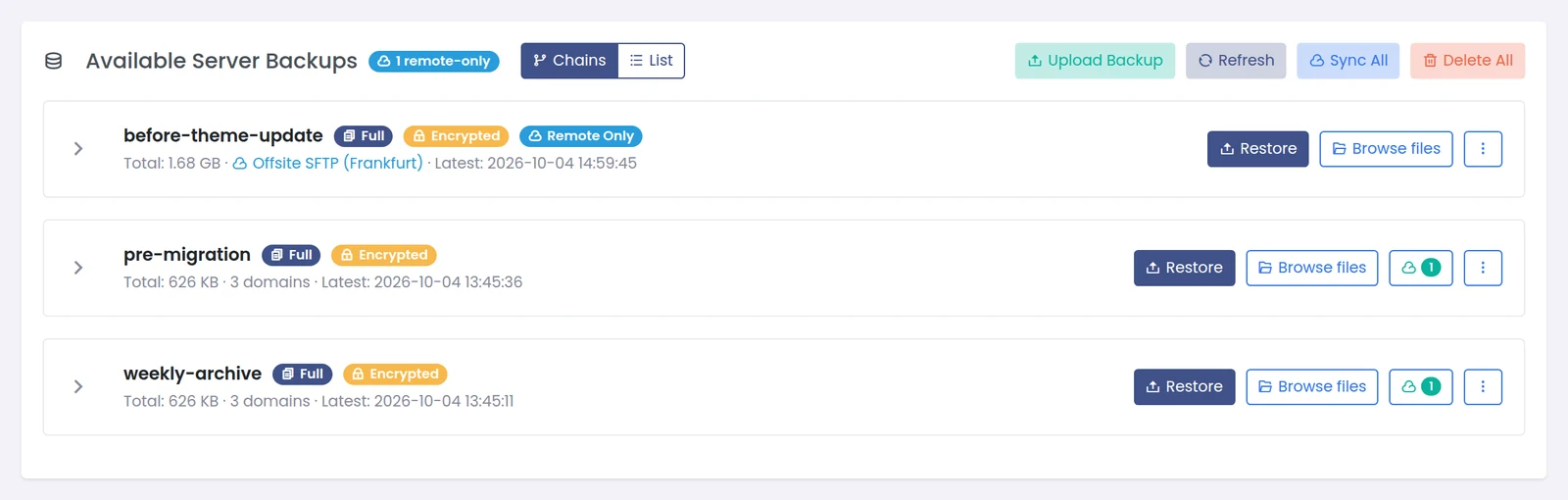
A backup kept only on the remote destination, listed with its name, size and the destination it lives on.
Browse a Backup Without Downloading It
Browse files on a remote-only backup opens the same browser used for local backups. A notice at the top says that the backup is only in cloud storage, how large it is, and that nothing has been downloaded: the panel fetches only the backup's index, a few kilobytes to a few megabytes, and caches it.
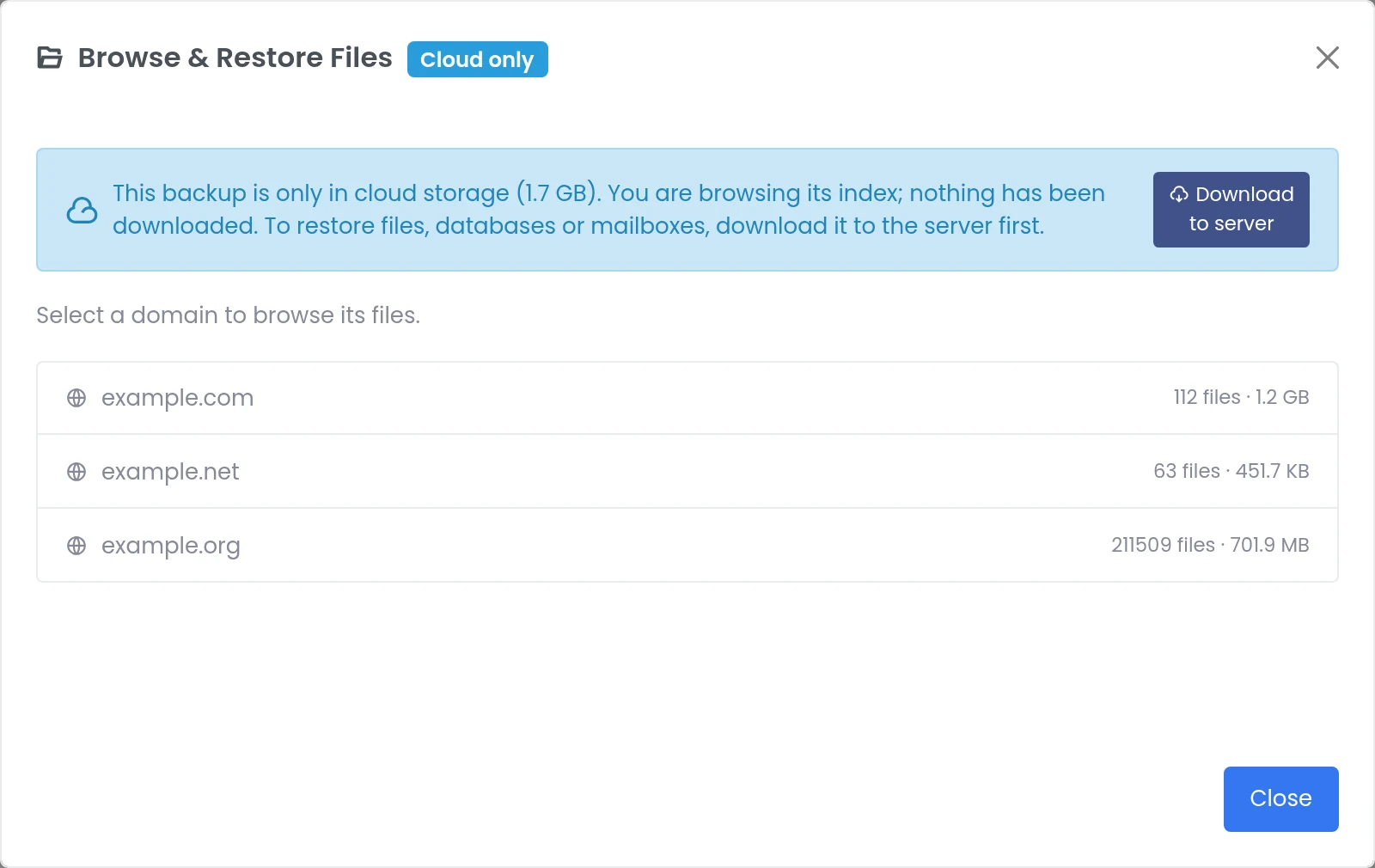
Browsing a 1.7 GB backup that lives only in remote storage. Only its index was fetched.
From there you navigate exactly as in a local backup: pick a domain, open folders, search by file name, and switch to the Databases and Mailboxes tabs to see what the backup holds. It is the quickest way to answer the questions that matter before a restore: is the file I need in this backup, and is it the version from before the change?
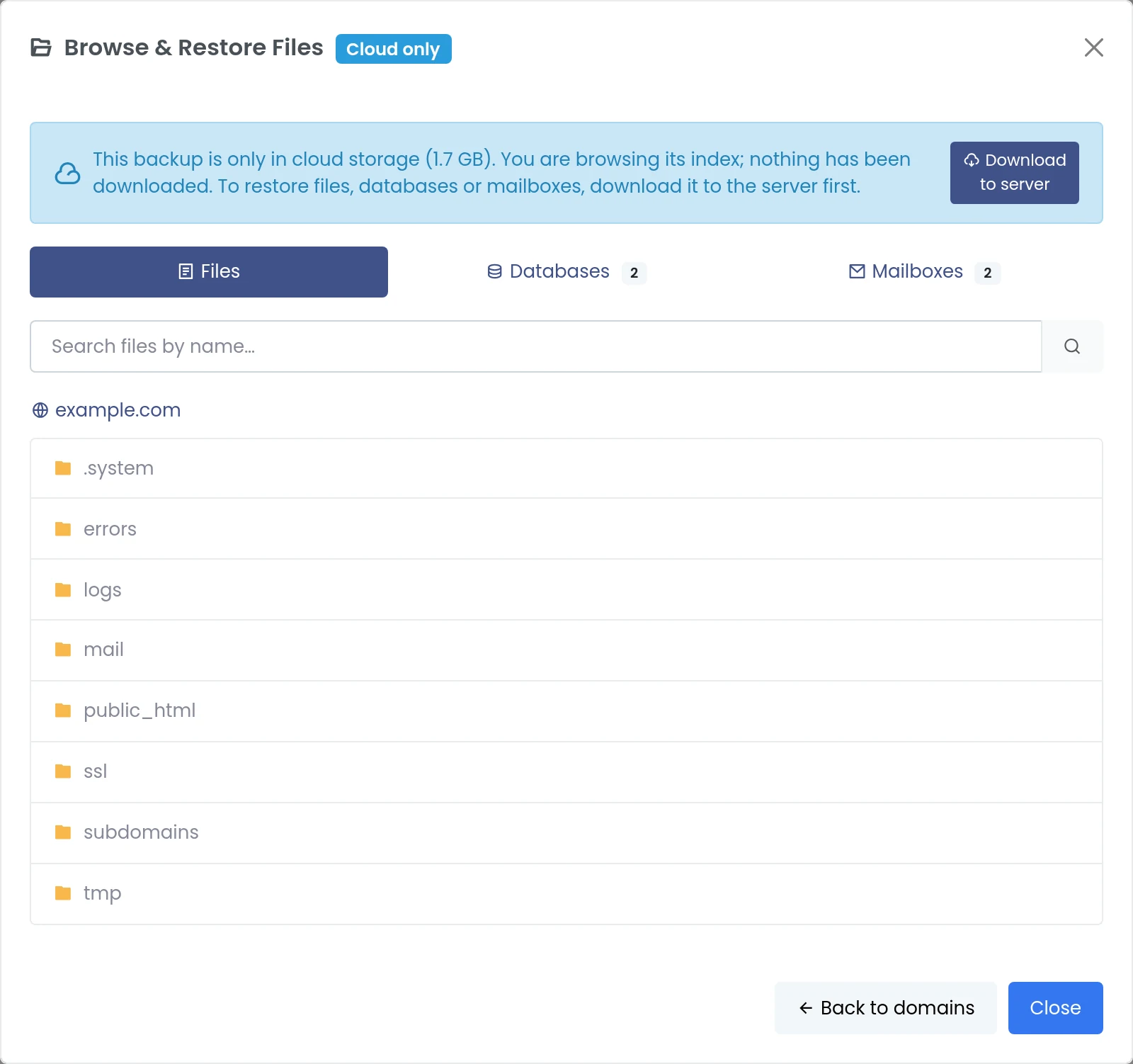
Inside the backup: the domain's folders, plus the databases and mailboxes it contains.
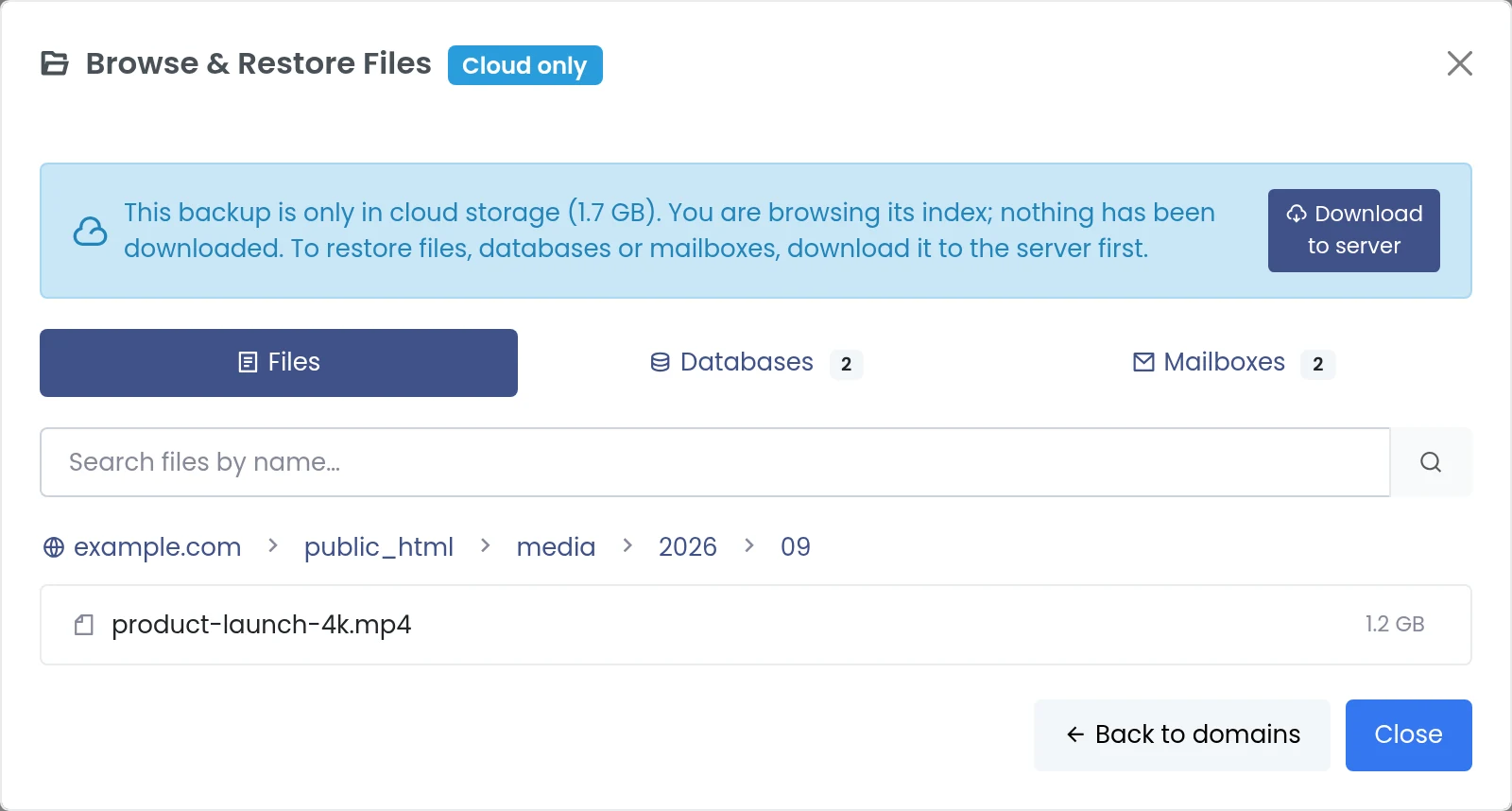
Deep inside the folder tree: a 1.2 GB media file found without downloading the 1.7 GB archive.
Downloads You Can Watch and Cancel
Restoring files, databases or mailboxes needs the archive on the server, so the browser offers Download to server. The download runs as a job on the server rather than in your browser tab: you can close the dialog or leave the page, and the restore page shows a banner with the file name, a progress bar and how much of the total has arrived.
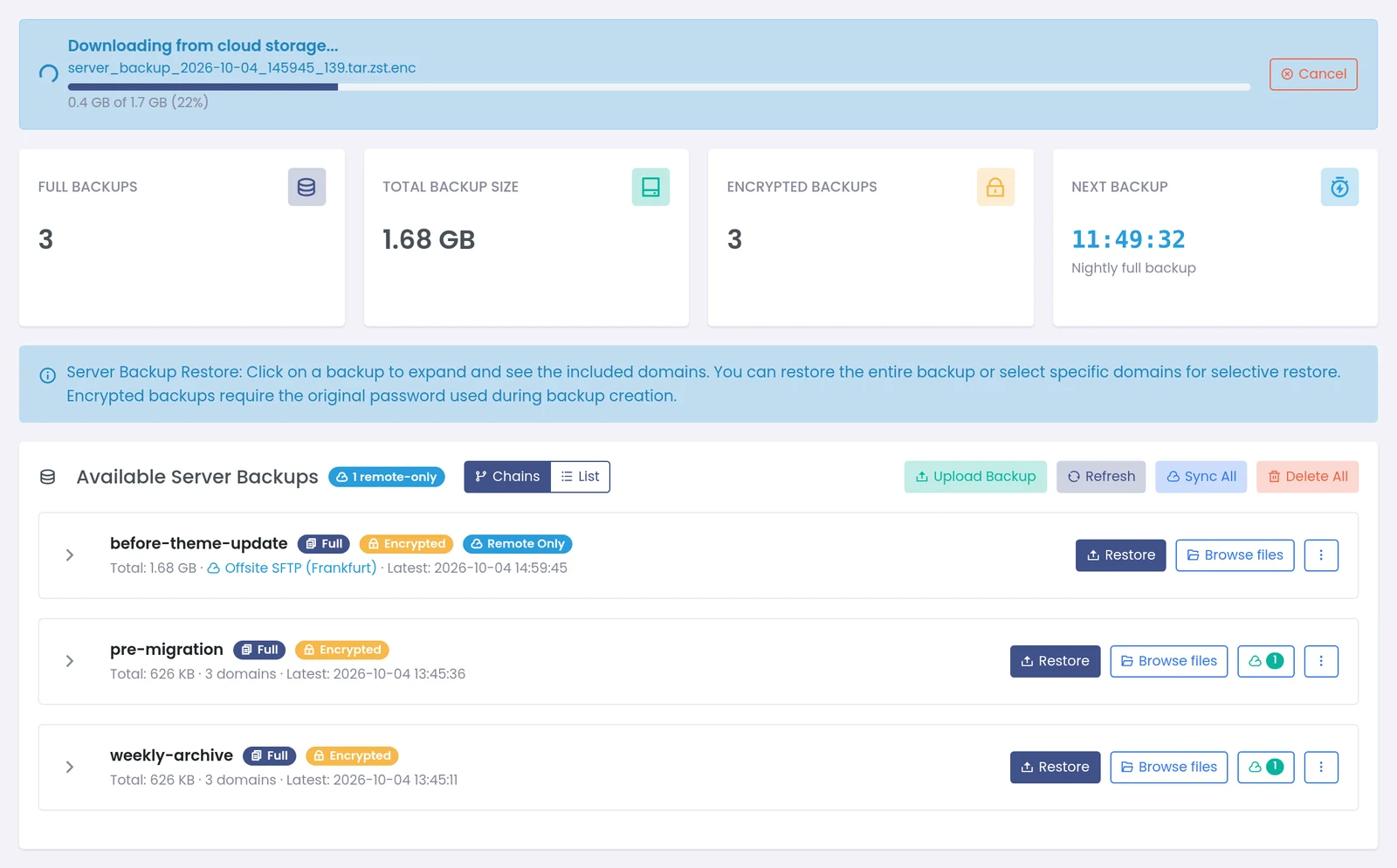
A download in progress, shown above the backup list.
Cancel asks for confirmation, stops the transfer and deletes the part downloaded so far, so a half-finished archive never sits on the disk looking like a backup. If you start the same download twice, the second request joins the job that is already running instead of starting another transfer. Partial files left behind by an interrupted panel restart are cleaned up when the panel starts.
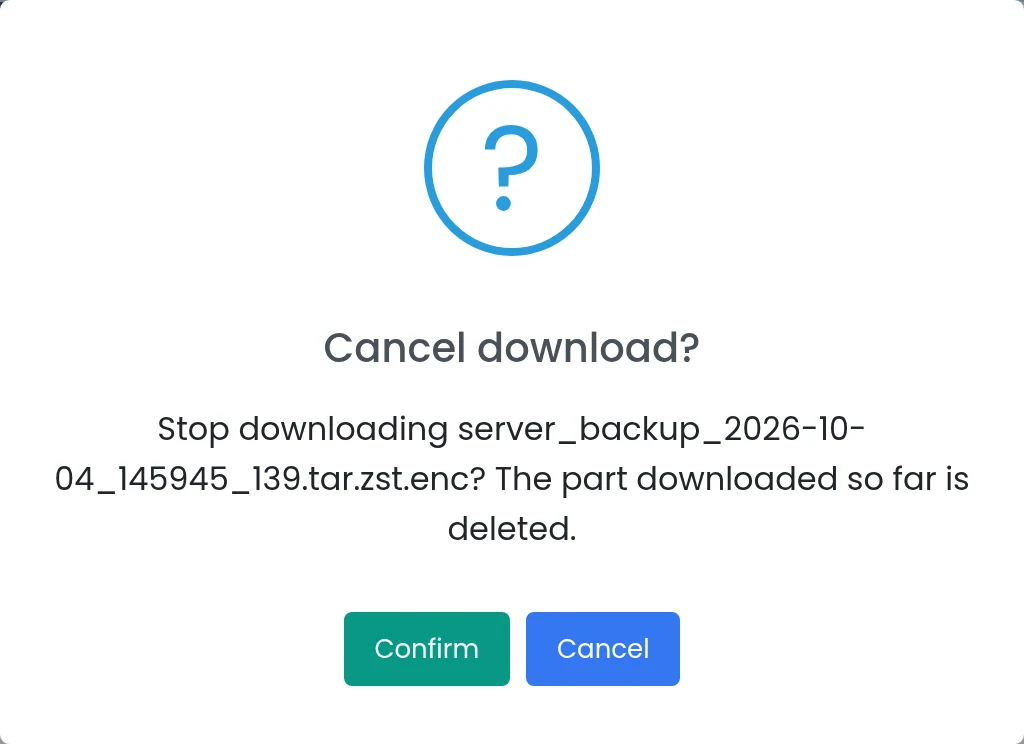
Cancelling asks first: the part downloaded so far is deleted.
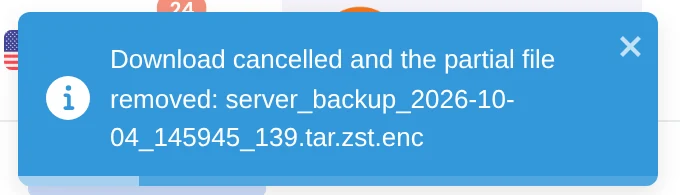
The confirmation after cancelling.
Upload a Manual Backup and Drop the Local Copy
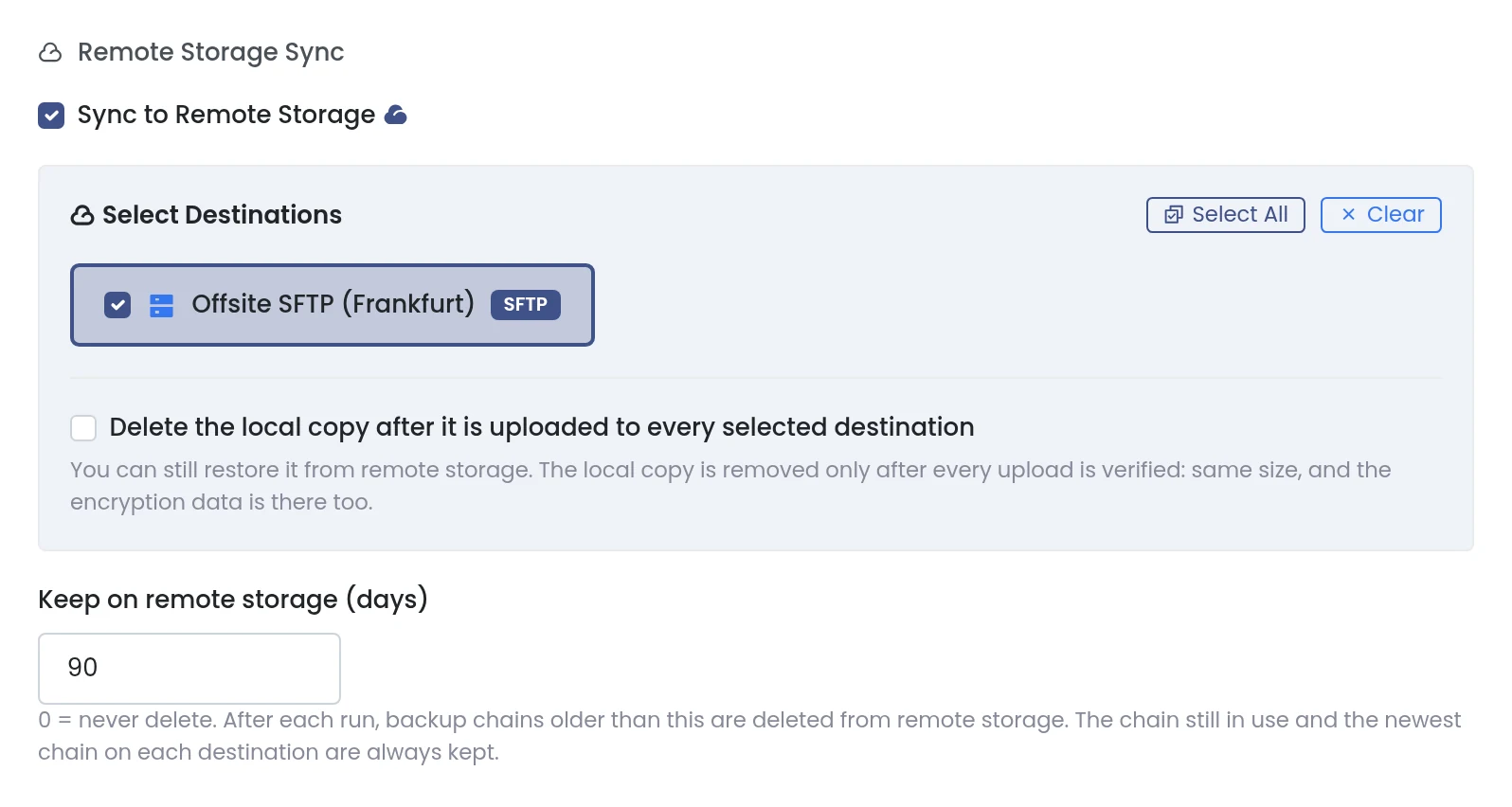
Creating a backup by hand now has the same remote options as a schedule. In the backup options dialog, Sync to Remote Storage lists your destinations; choose one or several. Below them, Delete the local copy after it is uploaded to every selected destination keeps the server's disk free for the backups that belong there.
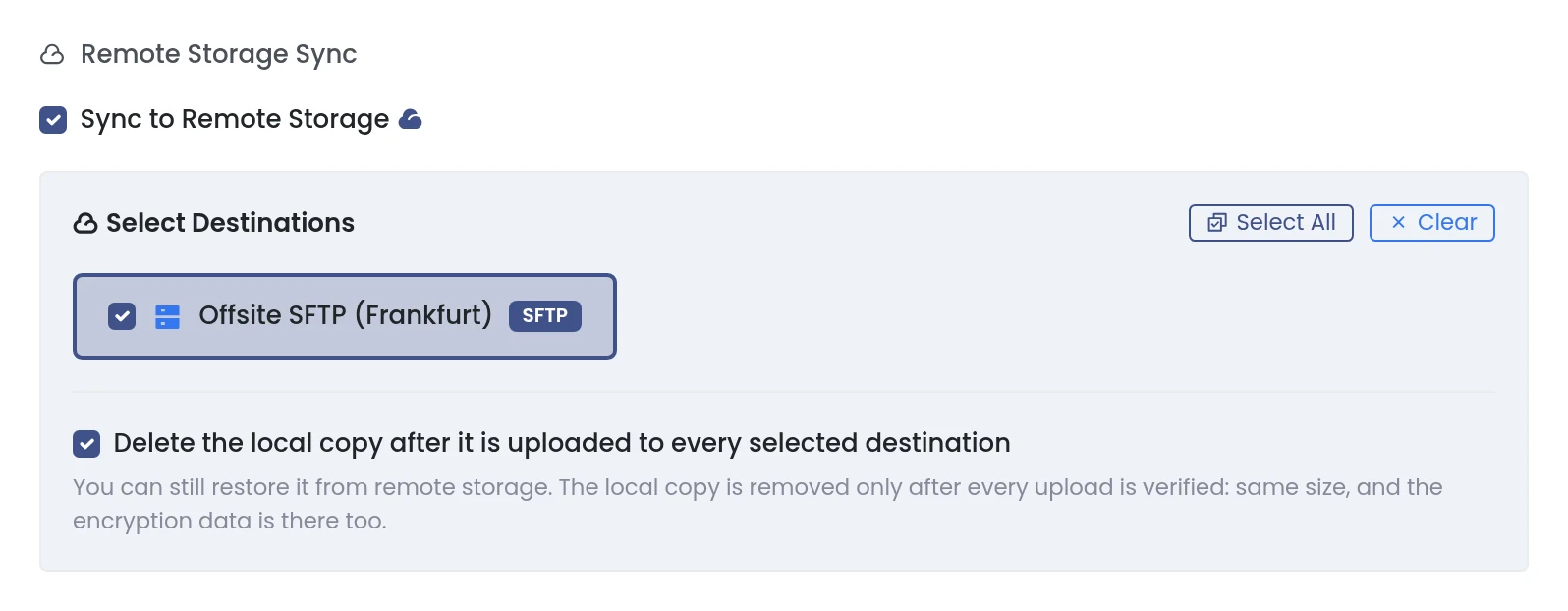
Manual backup with a remote destination selected and local-copy deletion turned on.
The local file is removed only after every upload has been verified — the remote copy has the same size, and the encryption data is there too — so a failed or partial upload never costs you the only copy. The option is offered for full backups only: an incremental backup needs its previous backup on the server, and deleting it would break the chain.
Separate Retention for Remote Storage
Scheduled backups have always had a retention period for the copies on the server. Each schedule now also has Keep on remote storage (days). The default is 0, which means remote copies are never deleted — the behaviour before this change. Set it to, for example, 90 and after each run the schedule deletes its backup chains older than 90 days from remote storage. The chain still in use, and the newest chain on each destination, are always kept, whatever their age.
A schedule keeping 14 days on the server (set elsewhere in the form) and 90 days in remote storage.
A common pattern is a short local retention for fast restores, a long remote one for safety, and local-copy deletion for servers with little free disk.
Practical Tips
- Encrypt anything that leaves the server. With the panel key, export the key and keep it away from the backups, so another server can open them if this one is lost.
- Browse before you download. On a slow link, checking the index first can save an hour of transfer.
- Use local-copy deletion on full backups for servers with small disks; keep local copies where fast restores matter more than space.
- Set remote retention to match what the storage costs you: the newest chain is always protected, so a long gap between runs never empties a destination.
Frequently Asked Questions
Does browsing a remote backup download it?
No. The panel downloads only the backup's index and caches it. The archive is downloaded only when you choose Download to server.
What happens to a cancelled download?
The transfer stops and the part downloaded so far is deleted. Nothing is left on the disk that could be mistaken for a complete backup.
When is the local copy deleted with "delete after upload"?
Only after the upload to every selected destination has been verified by size, with the encryption information present. If any upload fails, the local copy stays.
Why can incremental backups not delete their local copy?
Each incremental backup builds on the previous one on the server. Removing the local file would leave the next incremental without its base.
Will remote retention ever delete my last backup?
No. The chain in use and the newest chain on each destination are always kept, whatever the retention setting.
Which storage providers work?
The panel's remote destinations: Amazon S3 and S3-compatible storage, Google Cloud Storage, Google Drive and SFTP.