VPS Manager gives you full Linux servers with root access inside the server you already run with Panelica. Each one has its own users, files, processes, network address and resource limits, and none of them can see the others, the panel or the websites next to them. Use it as an isolated space for your own work, such as AI agents and bots that run around the clock, or give these servers to customers who ask for an isolated environment with full root.
What VPS Manager is, and what it is not
VPS Manager is not a hypervisor and it is not trying to replace Proxmox, VMware or a cloud provider. Every VPS is a system container: a complete Linux system that boots with its own init, runs its own services and cron jobs, and has its own package manager, but uses the same Linux kernel as the server it lives on. That is what makes it light: there is no virtual hardware and no second kernel, so a VPS starts in seconds and uses only the memory its programs actually need.
Sharing the kernel also draws the line of what a VPS can do. It runs Linux only: no Windows, no custom kernel and no kernel modules of its own. The panel says this on the create form, so nobody is surprised later.
That leaves two jobs it does very well:
- An isolated space for your own work. AI agents, bots, scrapers, queue workers, a staging copy of a site or a risky script you want to try. They get root and a server of their own, away from your live sites and the panel, and they keep running 24 hours a day.
- Isolated servers for your customers. Some customers do not want shared hosting; they want root, their own services and their own address. On a dedicated server, or even inside a large VPS or VDS of your own, VPS Manager lets you give them exactly that, within the limits of their hosting plan. If you sell VPS this way, one rule matters more than any other, and we come back to it at the end: keep the server's kernel up to date, because every VPS runs on it.
Under the hood: Incus and the Linux features it uses
The engine is Incus, the system container and virtual machine manager of the Linux Containers project (the people behind LXC and LXCFS; Incus is the community fork of LXD). Panelica builds its own Incus 6.0 LTS package and installs it under /opt/panelica, the same way it ships every other service, so it behaves the same on Ubuntu, Debian, AlmaLinux and Rocky Linux. VPS Manager only uses system containers; it does not run virtual machines.
Isolation is not one feature but several Linux features stacked on each other:
| Layer | What it does for a VPS |
|---|---|
| User namespaces with its own ID range | Root inside the VPS is an ordinary, unprivileged user ID on the server. Every VPS gets its own block of user IDs (from 1,000,000,000 up), so files and processes of one VPS never belong to another, even after a VPS is deleted and a new one is created. |
| cgroups v2 | Hard limits for CPU (100% = one core), memory, swap, processes and disk, plus a bandwidth cap. A runaway program hits its own ceiling, not the server's. |
| LXCFS, one per VPS | free, top and /proc inside the VPS show its own memory and CPU, not the server's. |
| Routed network and a network guard | No bridge and no DHCP server. Each VPS gets an internal address, and a separate guard service keeps the firewall rules in place: a VPS cannot reach other VPS, the panel's internal services, private networks or the cloud metadata address, and outgoing mail on port 25 is closed until you allow it. |
| LVM thin storage pool | VPS disks are carved from a storage pool reserved when VPS Manager is set up. A full VPS disk fills its own space, never the server's root disk. |
| Cloud images | Systems come from images.linuxcontainers.org, the image server of the Linux Containers project. The panel looks for newer images every 6 hours, so a new VPS starts from an up-to-date system. |
Setting it up
VPS Manager is in the menu of every panel, under Docker Manager, but nothing is installed until the root account clicks Set up. The setup card checks the server first: cgroup v2, kernel 5.14 or newer, user namespaces, loop devices, the dm-thin-pool module and /dev/fuse; that the server is not itself a container (a KVM VPS or VDS and a dedicated server work, an OpenVZ or LXC container does not); the LVM tools (installed by the setup when missing), free disk space, memory and whether the image server answers.
You then choose the size of the storage pool. The card shows the minimum, a suggested size and the maximum that fits; the space is reserved on the disk right away. An optional switch, Apply recommended VPS limits to the ready-made plans, gives the plans that come with the panel sensible VPS limits so customers can create a VPS at once; Docker, outgoing mail and dedicated IP permissions stay off. If the setup fails halfway, the server is put back as it was before.
The panel keeps memory for itself and the server: by default 20% of the RAM, at least 2 GB. A VPS can never take it.
Plans decide who gets what
Every service plan has a VPS section: how many VPS a user may create, and the CPU, memory, disk, processes and bandwidth of each one, plus how many dedicated IP addresses the user may hold. Three extra permissions can only be turned on by the root account:
- Containers inside the VPS: Docker, Podman or LXC inside.
- Outgoing mail (port 25): the VPS sends mail straight to other mail servers.
- Full server: for installing a hosting panel such as Plesk or Panelica inside the VPS; a dedicated IP, port 25 and containers inside, together.
One rule keeps resellers and customers honest: all of a user's VPS together can never use more than the account limits of their plan (CPU, memory, swap, processes and disk). If the account has 4 GB of memory and each VPS may have 2 GB, the user can run two VPS of 2 GB or four of 1 GB. The plan page shows how many full-size VPS fit in the account limits. Lowering a plan later shrinks nothing; the VPS simply cannot grow until they fit again.
All VPS in one list
The VPS Manager page lists every VPS you may see: status, internal address, how many ports are forwarded, limits, live memory and disk use, the owner, and quick actions to stop, restart, link a domain, open or delete. Root sees all of them, a reseller the VPS of their users, a user their own.
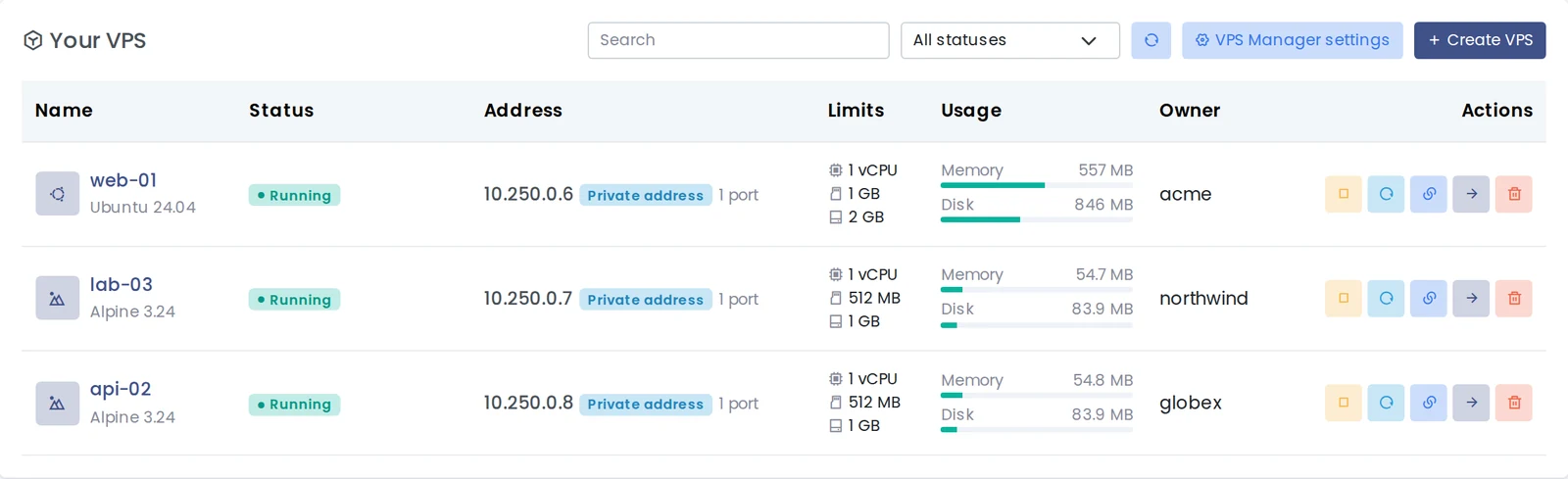
Three VPS of three customers on one server.
Creating a VPS in six steps
Create VPS opens a six-step form, and the steps on the left summarise what you picked:
- System: name, owner (the VPS counts against this user's plan) and operating system: Ubuntu 22.04, 24.04 and 26.04, Debian 12 and 13, AlmaLinux 9 and 10, Rocky Linux 9 and 10, or Alpine 3.24.
- Resources: CPU, memory, swap, disk, processes and bandwidth. Under every field you see the most the plan allows and what the server has free.
- Network: a private address or a dedicated IP.
- Security and start-up: port 25, containers inside, private network, and what the VPS does when the server boots.
- Access: let the panel make the root password or set your own, SSH login with a password, an SSH public key, and whether a server port is forwarded to SSH.
- Summary: everything at a glance, with a check of the server's free memory and disk.
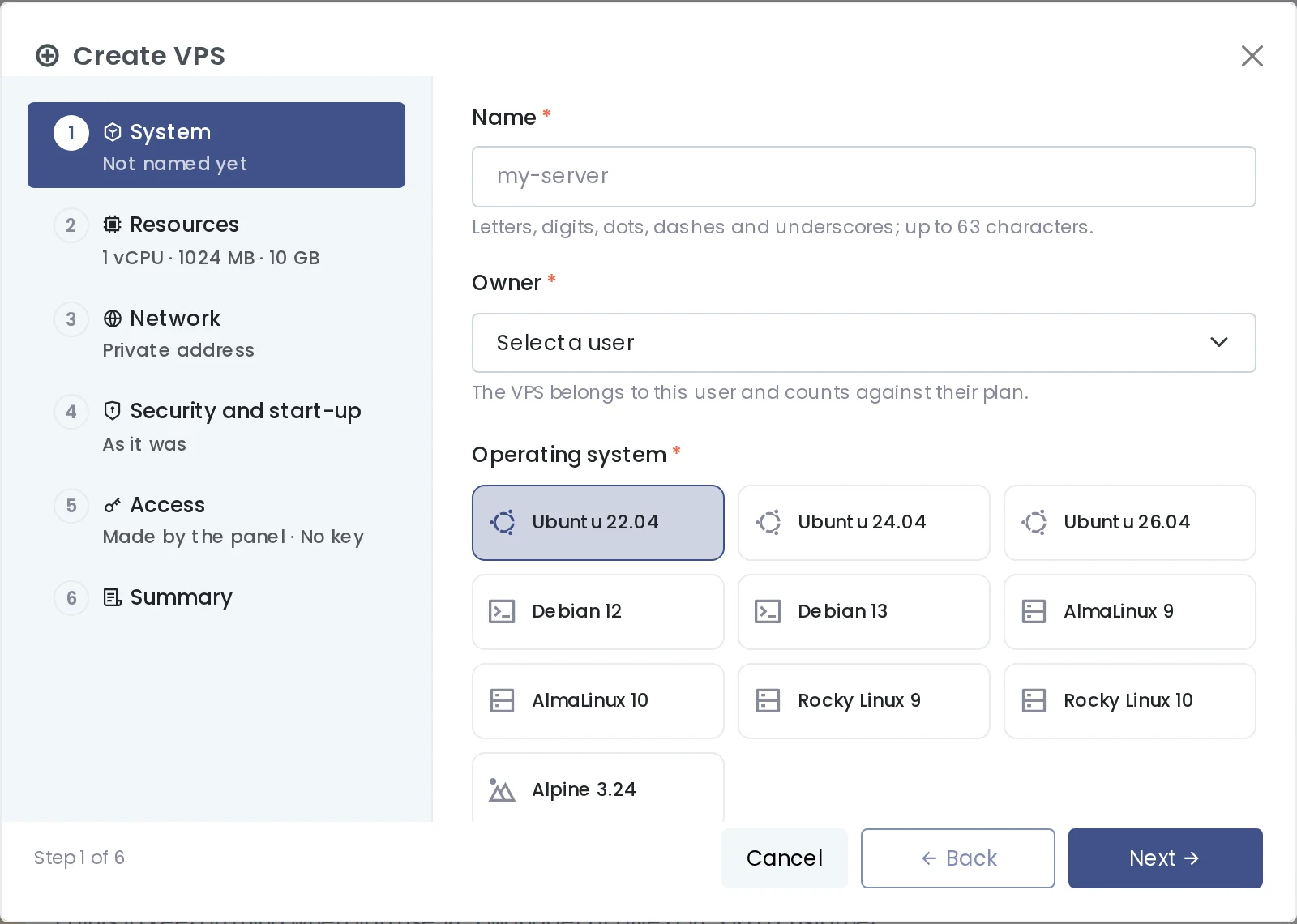
Step one: name, owner and ten Linux systems.
A value above the plan or the server's free capacity stops the form at that step, with the reason. When you click Create, the root password is shown once; the panel does not keep it. If it is lost, you set a new one, but nobody can read the old one again.
Getting in: SSH, SFTP, a terminal, a console and files
The Overview tab of a VPS shows live CPU, memory, disk and network traffic, and the Connection card below them. SSH is set up inside the VPS automatically, and a VPS with a private address gets a server port forwarded to its port 22 when it is created, so the card gives you commands to copy:
ssh -p 30004 root@SERVER-IP
sftp -P 30004 root@SERVER-IP
The same card resets the root password, edits root's SSH keys and turns password login off (root can then log in only with a key), and opens the terminal, the serial console, the files and the network settings.
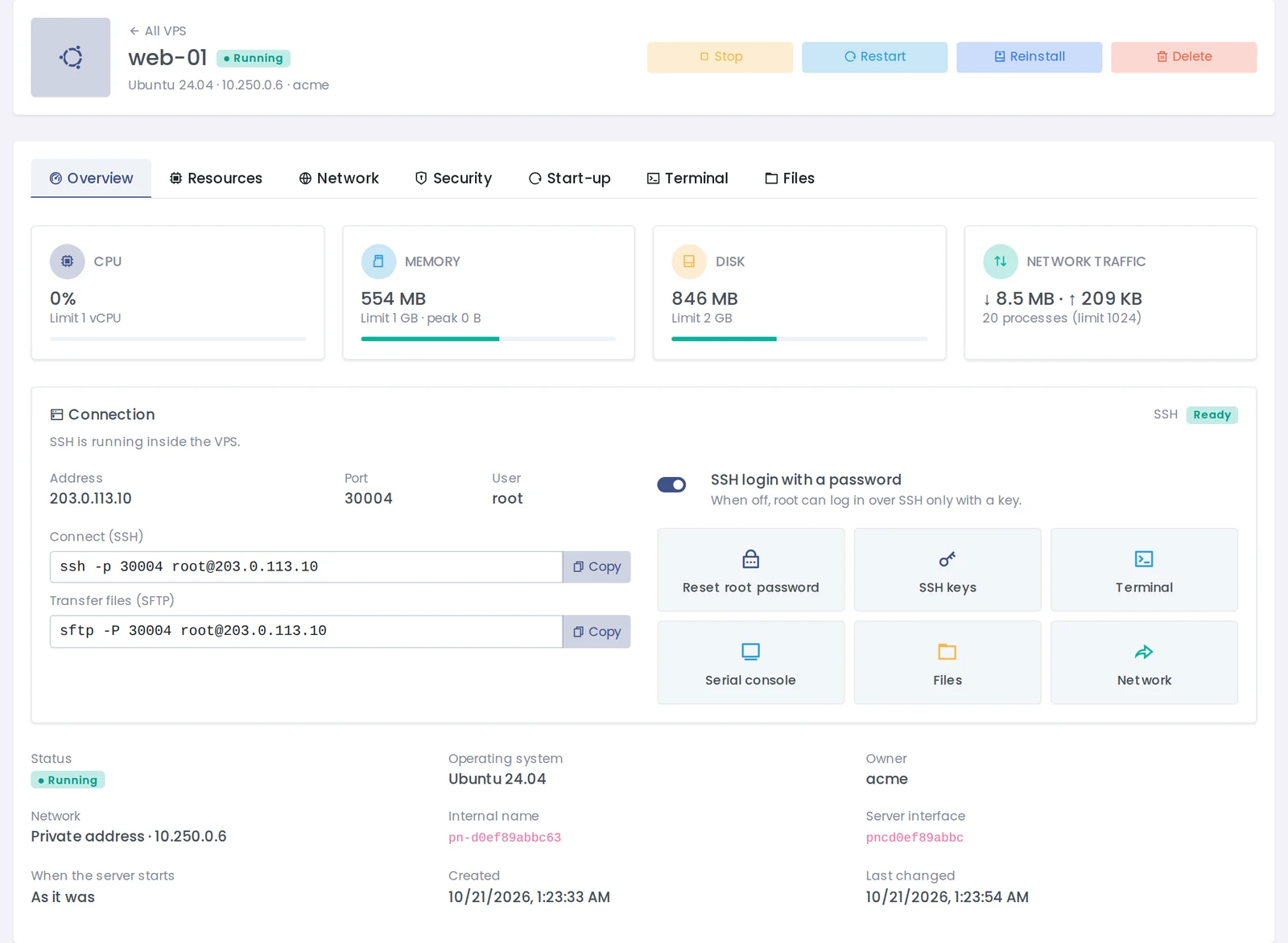
The server address in these screenshots is the documentation address 203.0.113.10.
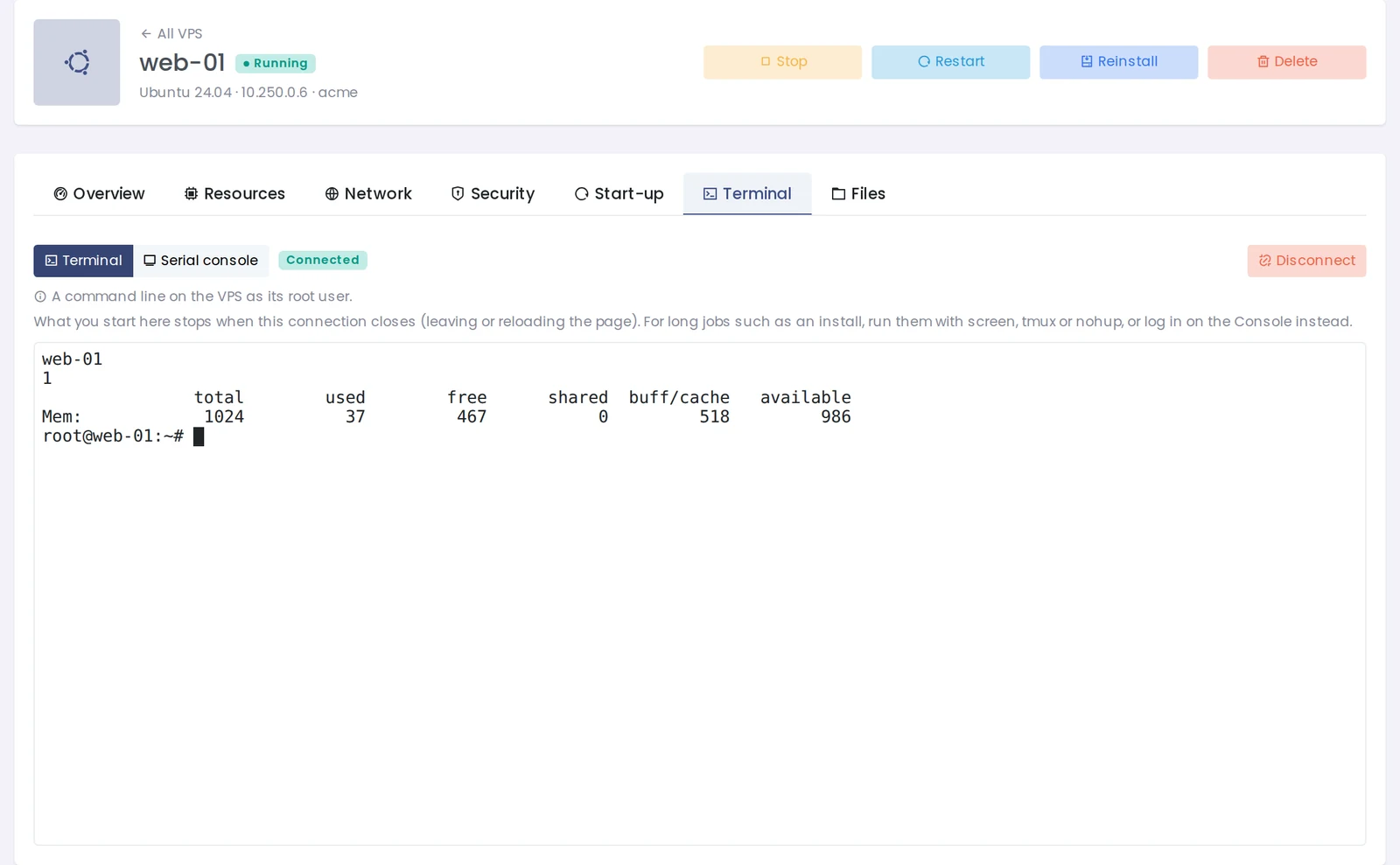
The Terminal tab opens a root command line in the browser: no SSH and no password needed. It stays open while you move to other tabs or pages and closes after 60 minutes without activity or when you sign out. In the screenshot, hostname, nproc and free -m run inside the VPS: one CPU and 1024 MB, the limits of this VPS, not the server.
The Serial console on the same tab shows the VPS's own console, useful when its SSH or network does not work (logging in needs root's password). The Files tab is a full file manager: upload, download, edit, compress and extract, permissions, move and copy.
htop tells the same story: a 1 GB memory bar and a single CPU, because every VPS has its own LXCFS.
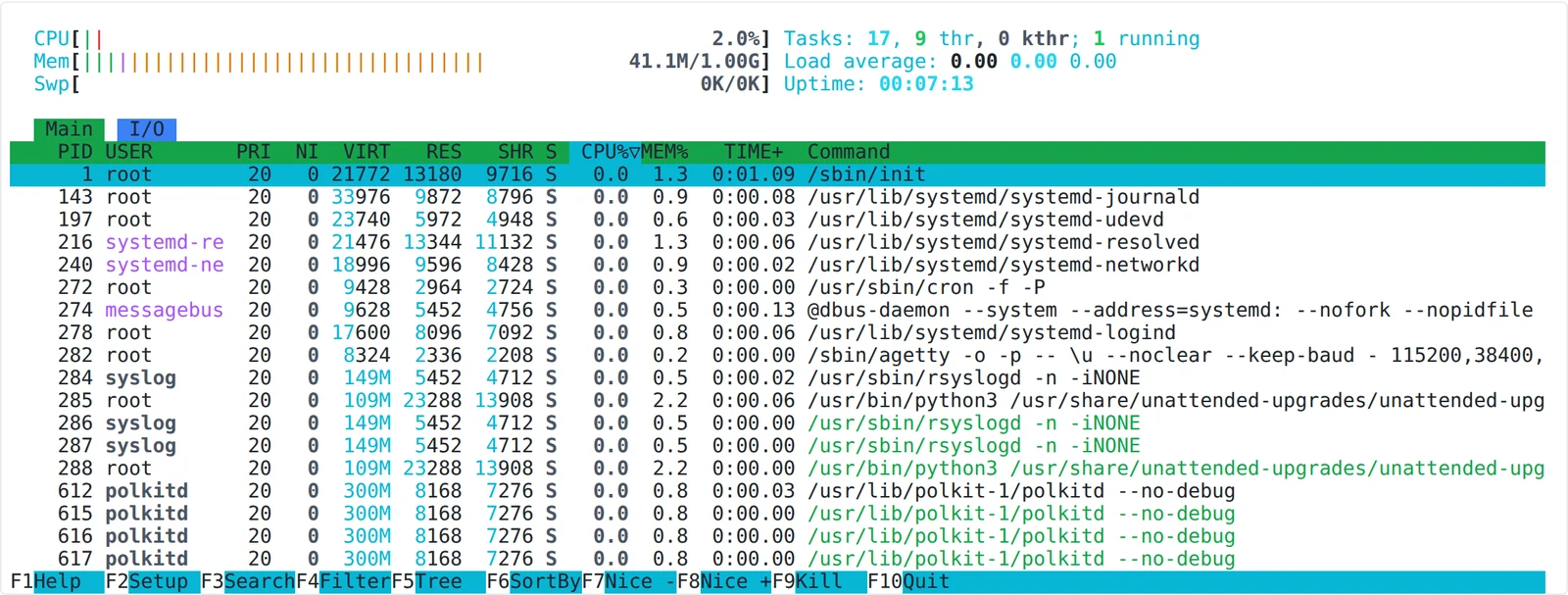
htop inside the VPS: 1 GB of memory and one CPU, as given.
Network: a private address, port forwards or a dedicated IP
Each VPS has an address only this server knows (10.250.0.0/16 by default), like the devices behind a home router. There are two ways to reach it from outside:
- Port forwards. A port of the server leads to a port of the VPS, for example server port 30004 to SSH (22). The Ready-made set list on the Network tab opens common ones in one go: SSH (22), Website (80, 443), Panelica (8443, 22), Plesk (8443, 8880, 22), cPanel / WHM (2083, 2087, 22), Databases (3306, 5432), Minecraft (25565), or a custom port. Leave the server port empty and the next free port of the VPS port range (30000 to 39999 by default) is used. TCP and UDP are both supported.
- A dedicated IP. An IPv4 address you added to the panel and no website or other account uses is given to the VPS, and every port of the VPS answers there directly, without forwards. The list explains why an address cannot be chosen. Only root or an admin can give a VPS its own IP, and changing the network restarts the VPS.
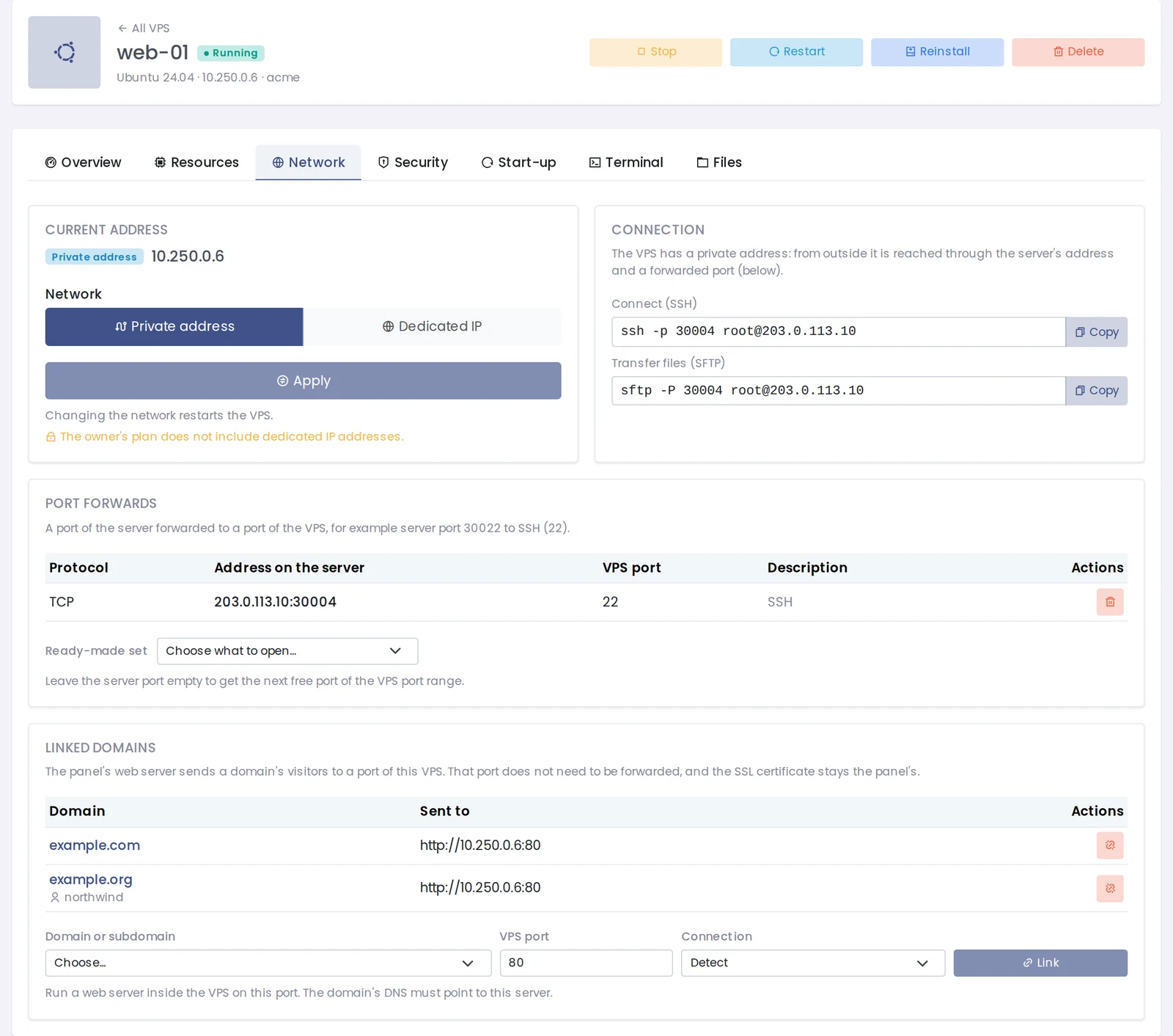
The Network tab: address, port forwards with ready-made sets, and linked domains.
If the server sits behind NAT or a provider firewall such as a cloud security group, open the forwarded ports there too; for a VPS with its own IP, port 22 and every port its services use.
The web: send a domain to the VPS, keep the panel's SSL
To serve a website from a VPS you do not need to forward ports 80 and 443. Under Linked domains you choose a domain or subdomain, type the port the web server inside the VPS listens on (80, 3000, 8000, whatever it is) and click Link. The panel's web server sends that domain's visitors to that port of the VPS, and the SSL certificate stays the panel's, renewals included. The connection to the VPS can be HTTP, HTTPS or detected.
A user can link their own domains, a reseller or an admin the domains of the accounts they manage, and root any domain on the server; the domain's DNS must point to this server. A domain already served by another VPS, a Docker container, a Node.js, Python or Laravel app, or being moved to another account is listed with the reason and cannot be picked. While the VPS is stopped, visitors see the "site is not running" page; unlink the domain and it is served from its own web folder again.
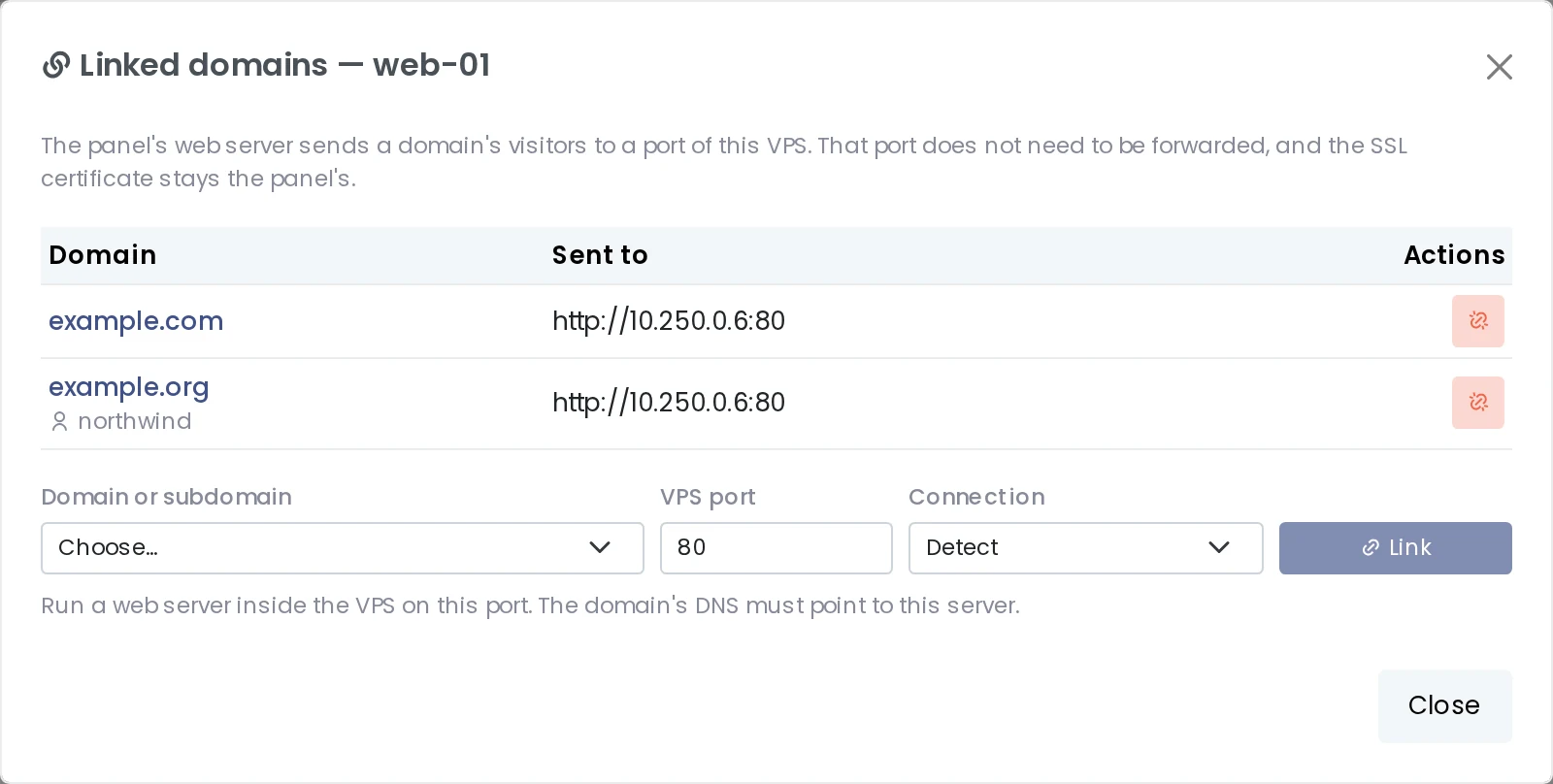
Two domains sent to port 80 of the same VPS; example.org belongs to another customer, linked by root.
Resources: change them while the VPS runs
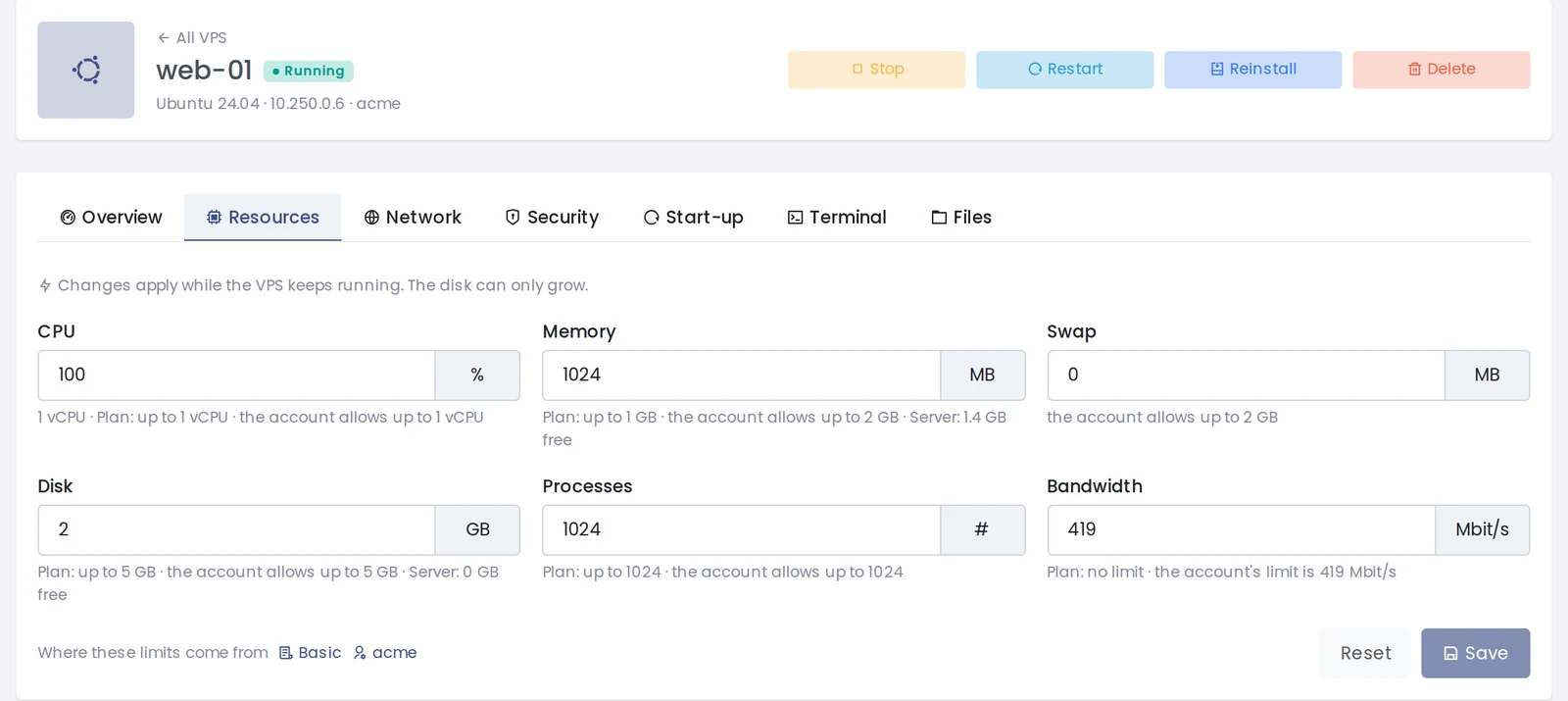
On the Resources tab, CPU, memory, swap, disk, processes and bandwidth change without stopping the VPS; the disk can only grow. Under every field you see three ceilings: what the plan allows per VPS, what the account has left, and what the server has free. "Where these limits come from" links to the plan and the user.
Security switches, start-up and reinstall
The Security tab has three switches, and a switch that cannot be turned on says why:
- Outgoing mail (port 25), off by default to keep the server's address off spam lists.
- Containers inside the VPS, for Docker and similar tools.
- Private network, so the VPS can reach the same owner's other VPS over the internal network.
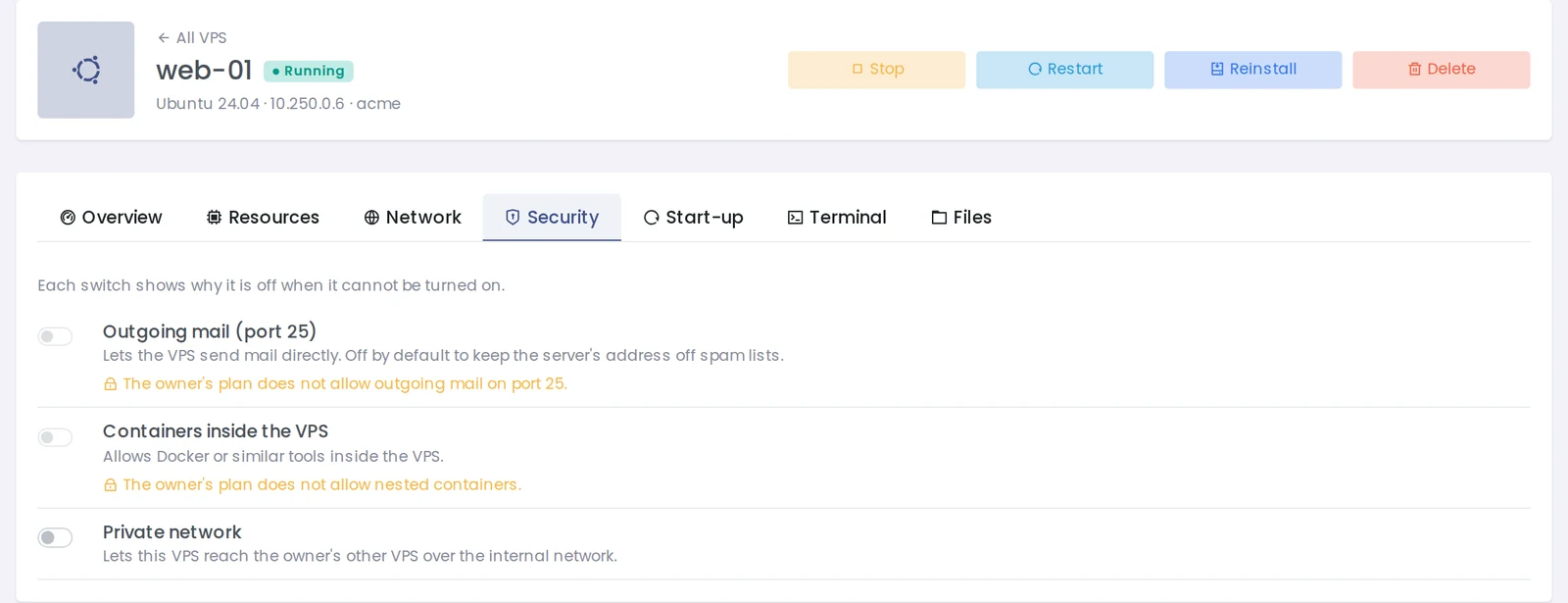
This customer's plan does not allow port 25 or containers inside, and the page says so.
The Start-up tab decides what the VPS does when the server boots: As it was (the default: it starts only if it was running when the server shut down), Always start or Stay stopped. When the server shuts down, every VPS gets time to stop its programs cleanly (60 seconds by default, so databases save their data), and after a boot the VPS start one by one, 2 seconds apart by default, so the server is not overloaded.
Reinstall rebuilds a VPS with any system you choose, for example from Ubuntu to Debian 12, and hands you a new root password. Everything inside is erased; the name, addresses, forwarded ports, limits and root's SSH keys stay. You confirm by typing the VPS name.
Settings for the server owner
The VPS Manager settings page (root only) holds the server-wide choices:
- Network: the internal address range (the page warns if it clashes with the server's own network), the DNS servers (Cloudflare, Quad9, Google, OpenDNS or your own), the port range for forwards, private networks the VPS may still reach (for example a backup server in your data center), and whether a VPS may open the websites hosted on this server.
- Capacity: memory kept for the server and disk overcommit (1 means VPS disks never add up to more than the pool, the safest choice).
- Cool-down times: a released port rests 24 hours, an IP address 72 hours and a user ID range 30 days before anyone else gets it, so old visitors and old DNS records never land on a new owner.
- Start and shutdown: the delay between starts and the shutdown wait.
- Operating systems: the systems customers can choose. Turning one off only hides it for new VPS; running VPS are not affected.
Example: an AI agent that runs 24/7
Say you have an agent or a bot written in Python, with a small web dashboard on port 8000. You want it on a server of its own, away from your sites, and running again on its own after a reboot.
1. Create the VPS. VPS Manager › Create VPS: name ai-agent, Ubuntu 24.04, 1 vCPU (100%), 1024 MB of memory, 10 GB of disk, a private address, Always start under start-up (and containers inside, if your agent uses Docker and your plan allows it), a panel-made root password and your SSH public key. Save the password.
2. Connect with the command from the Connection card (the port is different for every VPS):
ssh -p 30004 root@SERVER-IP3. Install the agent.
apt update && apt install -y python3-venv git
git clone https://github.com/you/your-agent.git /opt/agent
cd /opt/agent && python3 -m venv venv && ./venv/bin/pip install -r requirements.txt
nano /opt/agent/.env    # API keys live here, inside the VPS
4. Make it a service in /etc/systemd/system/agent.service:
[Unit]
Description=AI agent
After=network-online.target
Wants=network-online.target

[Service]
WorkingDirectory=/opt/agent
EnvironmentFile=/opt/agent/.env
ExecStart=/opt/agent/venv/bin/python agent.py
Restart=always
RestartSec=5

[Install]
WantedBy=multi-user.target
systemctl daemon-reload
systemctl enable --now agent
journalctl -u agent -fIf the agent crashes, systemd starts it again within 5 seconds. If the server reboots, the VPS comes back because of "Always start", and the agent with it.
5. Open the dashboard from outside, in one of two ways:
- Network › Port forwards: VPS port 8000, server port left empty, and the dashboard is at
http://SERVER-IP:30005(or whichever port was given). - Cleaner: Network › Linked domains:
agent.yourdomain.comto VPS port 8000. Visitors openhttps://agent.yourdomain.com, the certificate comes from the panel, and port 8000 is never opened to the internet.
6. If it goes wrong. An agent that eats memory hits its own 1 GB, not your websites or the panel. Even a compromised agent cannot reach the panel's internal services, other VPS, private networks or the cloud metadata address from inside, and with port 25 closed it cannot send spam.
Example: selling a VPS with root to a customer
- Service Plans › the plan › VPS: number of VPS (say 1), and per VPS 2 vCPU (200%), 2048 MB, 20 GB, processes and bandwidth. Make sure the account limits of the plan are large enough to carry it; the plan page shows how many full-size VPS fit.
- If the customer gets a dedicated IP: add the address to the panel first and give the plan one dedicated IP.
- Create the user with this plan. The customer signs in to their own panel and creates their VPS within the plan with Create VPS (or you create it for them and pass on the password).
- The customer logs in with the command from the Connection card and installs their own services. They have their own browser terminal, serial console, file manager, port forwards and linked domains.
- If the customer wants to install a hosting panel inside (Plesk, Panelica), only root can turn on Full server in the plan: a dedicated IP, port 25 and containers inside, together. Give it only to customers you trust.
Selling VPS: what to keep in mind
- Kernel updates. Every VPS runs on the server's kernel, so a kernel vulnerability concerns all of them. Follow your distribution's kernel updates and plan a reboot window; during a reboot the VPS shut down cleanly and come back according to their start-up setting.
- Backups. The contents of a VPS are not part of the panel's backups yet. Tell your customers to keep copies of their own data.
- Capacity. Choose the memory kept for the server and the disk overcommit on purpose; the panel refuses a new VPS that would go past these limits.
- Permissions. Containers inside, port 25 and full server widen what an attacker can reach. They are off by default and only root can turn them on.
- Provider firewalls and NAT. Open forwarded ports there too.
What this first version does not do
- Windows, custom kernels and kernel modules: the kernel is shared.
- Snapshots, and VPS contents in the panel's backups.
- Virtual machines: VPS Manager uses system containers only.
VPS Manager works with panelica-server 1.0.562 and newer on Ubuntu, Debian, AlmaLinux and Rocky Linux servers. This is its first version; if something does not work as you expect, tell us on the forum.
Related reading
- Panelica VPS Manager: Run Full Linux Servers Next to Your Websites, the overview, with a comparison of VPS, Docker containers and virtual machines.
- Guide: Creating a VPS and Linking a Domain to It on the forum.